> ## Documentation Index
> Fetch the complete documentation index at: https://superwhisper-docs-cloud-model-rate-limits.mintlify.site/llms.txt
> Use this file to discover all available pages before exploring further.
# Recording Window
> Learn how to identify and utilize the key features of the Superwhisper recording window, the central hub for your AI-powered dictation.
 ## Overview
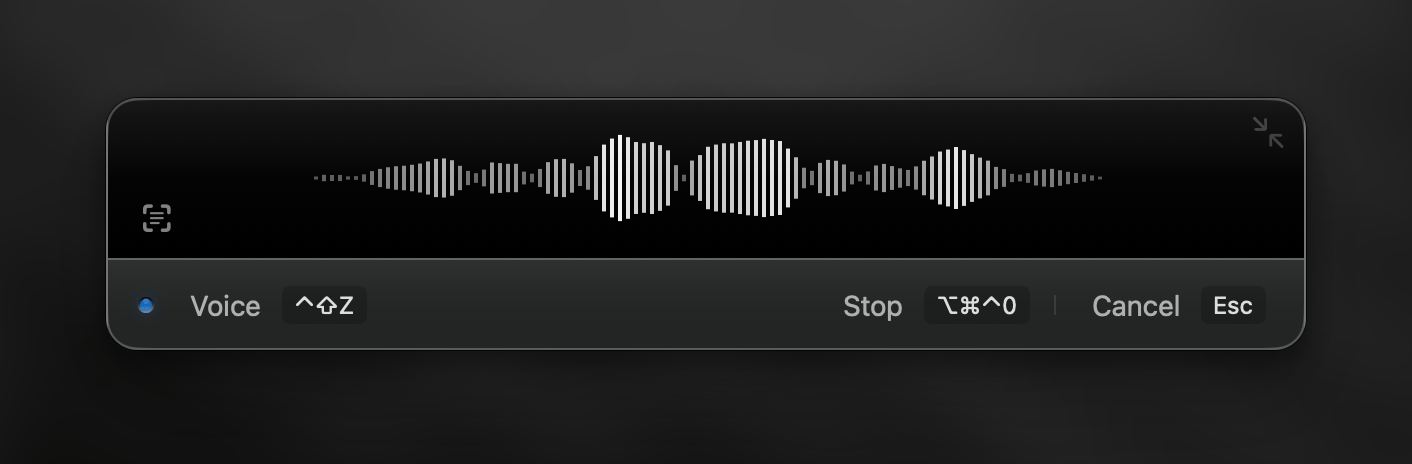
Superwhisper's recording window is carefully designed to provide intuitive control and real-time feedback during your dictation.
**Let's explore the key components of the main recording interface:**
***
## Main Recording Window
### 1. Resize Toggle
## Overview
Superwhisper's recording window is carefully designed to provide intuitive control and real-time feedback during your dictation.
**Let's explore the key components of the main recording interface:**
***
## Main Recording Window
### 1. Resize Toggle
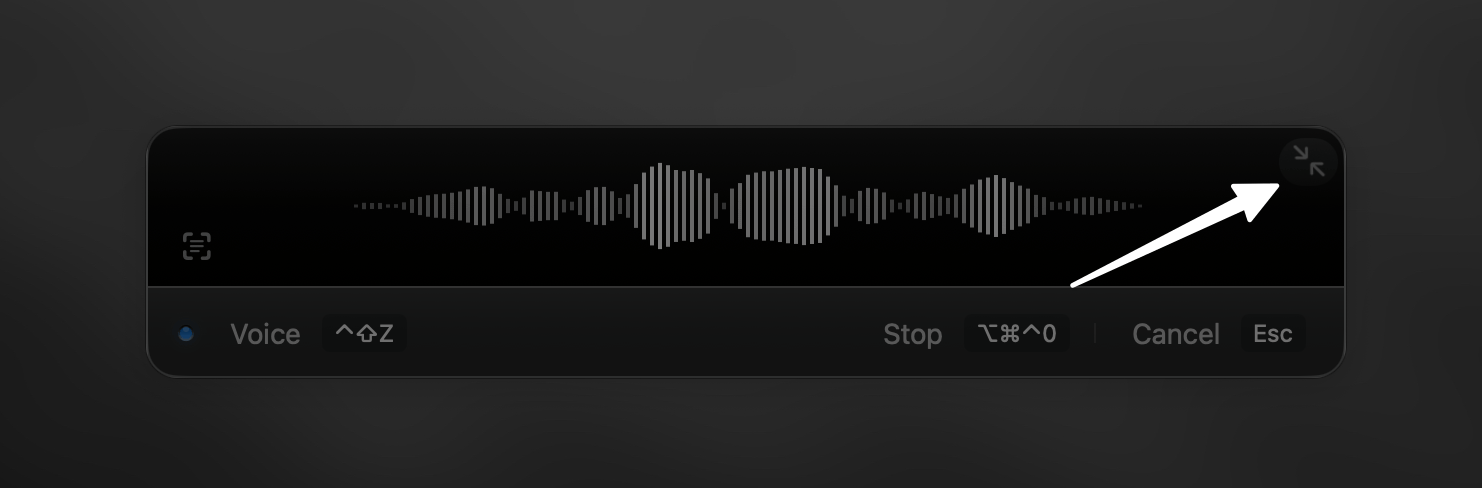 When you hover over the recording window, you can click here to switch between the main and mini view.
### 2. Audio Waveform
When you hover over the recording window, you can click here to switch between the main and mini view.
### 2. Audio Waveform
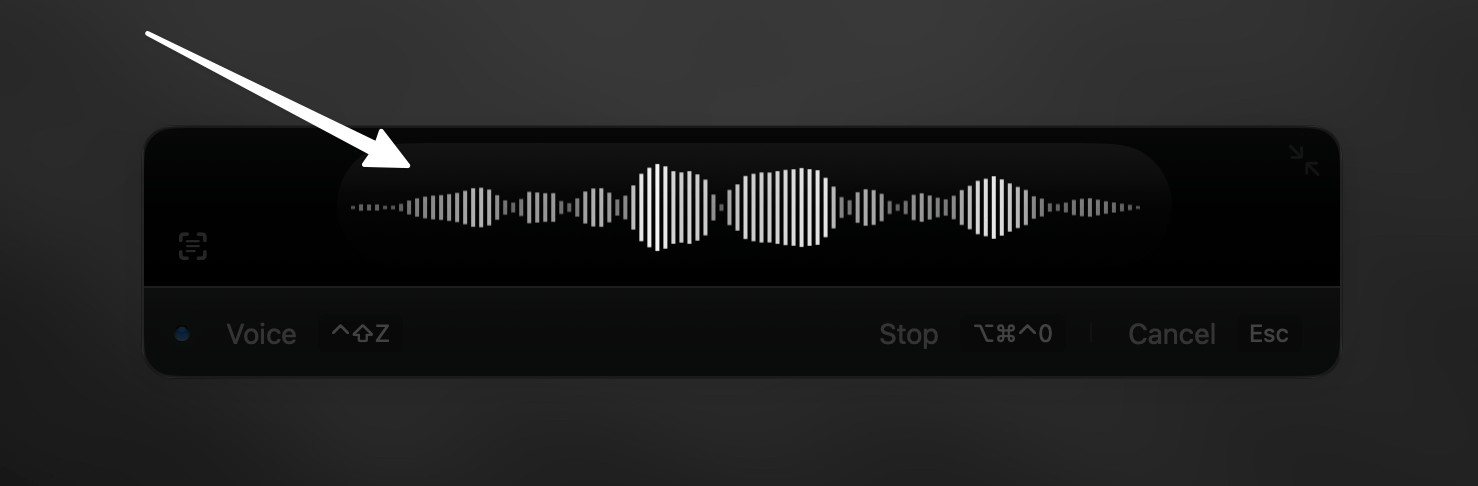 The waveform visually represents the audio captured by your microphone, giving you real-time feedback during dictation sessions. A moving waveform indicates your microphone captures audio correctly.
If the waveform stays static, check these elements:
* Verify your selected audio input device in [Superwhisper's Sound tab](settings-sound)
* Confirm microphone permissions in System Settings > Privacy & Security > Microphone
Exception: When using [system audio capture in a Custom mode](../modes/custom#audio-options), the waveform remains static. Your audio still records properly - you can verify this in the [History tab](interface-history), which displays detailed information about each dictation session.
### 3. Status Indicator
The waveform visually represents the audio captured by your microphone, giving you real-time feedback during dictation sessions. A moving waveform indicates your microphone captures audio correctly.
If the waveform stays static, check these elements:
* Verify your selected audio input device in [Superwhisper's Sound tab](settings-sound)
* Confirm microphone permissions in System Settings > Privacy & Security > Microphone
Exception: When using [system audio capture in a Custom mode](../modes/custom#audio-options), the waveform remains static. Your audio still records properly - you can verify this in the [History tab](interface-history), which displays detailed information about each dictation session.
### 3. Status Indicator
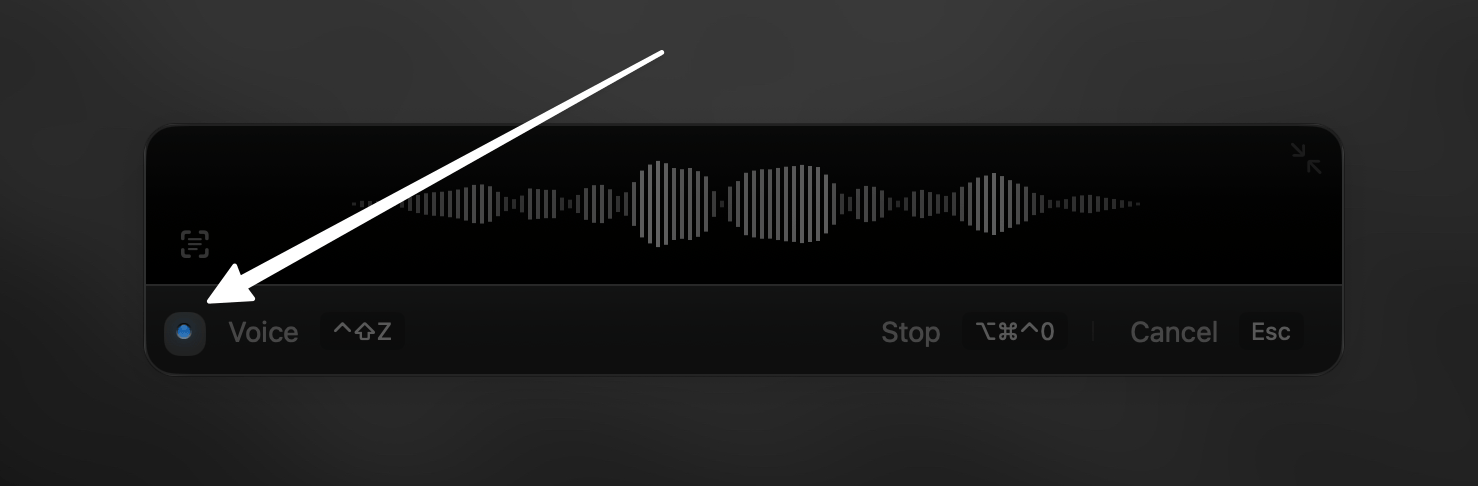 The color-coded dot reflects the current recording status, similar to the one in [the menu bar](interface-menu-bar#status-indicator-dot):
* Yellow: Model loading in progress
* Blue: Dictation processing
* Green: Processing completed
### 4. Mode Display
The color-coded dot reflects the current recording status, similar to the one in [the menu bar](interface-menu-bar#status-indicator-dot):
* Yellow: Model loading in progress
* Blue: Dictation processing
* Green: Processing completed
### 4. Mode Display
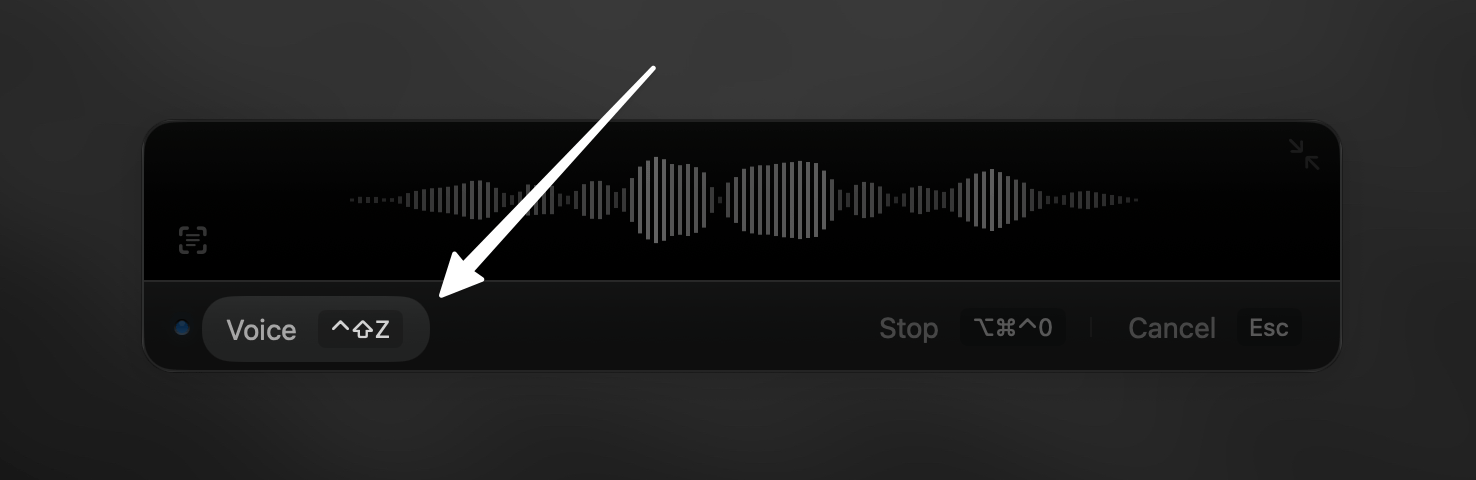 This area of the recording window shows your currently active mode in Superwhisper and displays the keyboard shortcut for quick mode switching. You can click here to switch modes manually.
In Super Mode, this area displays your current application or website context.
### 5. Context Capture
This area of the recording window shows your currently active mode in Superwhisper and displays the keyboard shortcut for quick mode switching. You can click here to switch modes manually.
In Super Mode, this area displays your current application or website context.
### 5. Context Capture
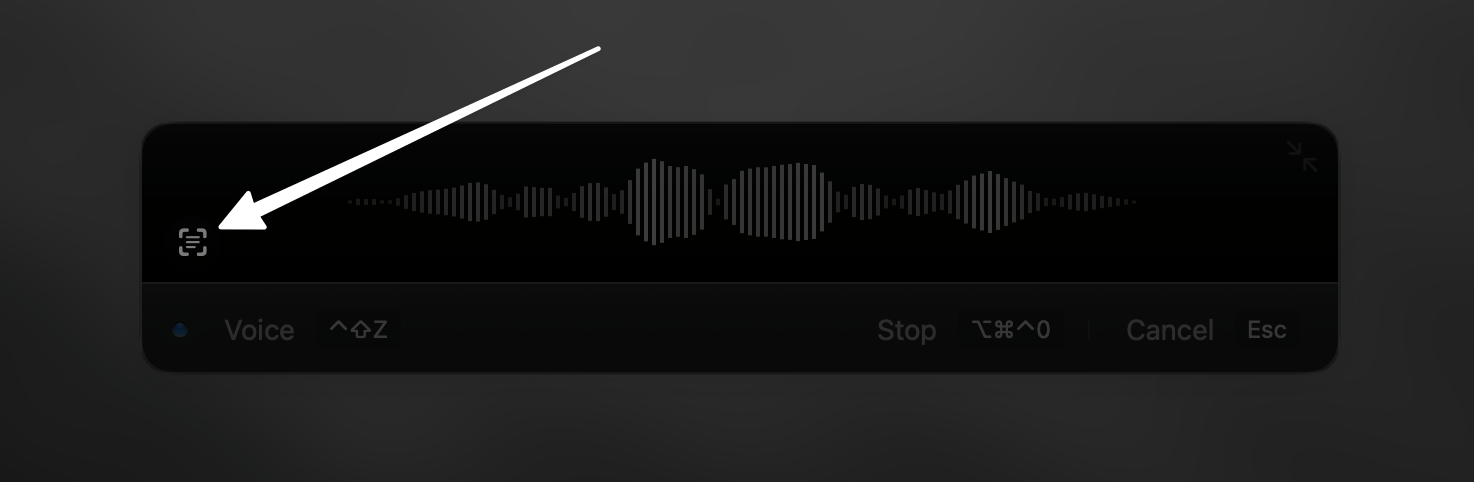 This indicator can appear in Super Mode or Custom modes with [context awareness features](../common-issues/context) enabled. It lights up to confirm Superwhisper has captured clipboard context - when you copy text within 3 seconds before dictation starts or during an active dictation session. Additionally, it signals when selected text context is captured at the exact moment recording begins.
### 6. Stop Recording
This indicator can appear in Super Mode or Custom modes with [context awareness features](../common-issues/context) enabled. It lights up to confirm Superwhisper has captured clipboard context - when you copy text within 3 seconds before dictation starts or during an active dictation session. Additionally, it signals when selected text context is captured at the exact moment recording begins.
### 6. Stop Recording
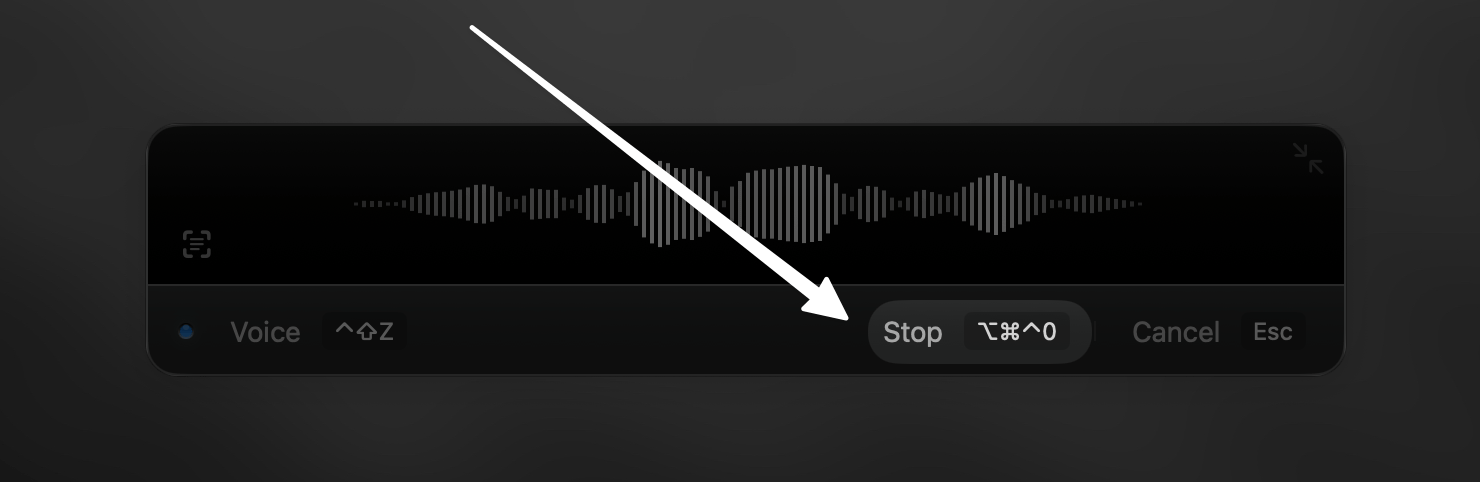 If you're ready to wrap up your dictation, click here to stop recording - or use the same keyboard shortcut you used to start.
### 7. Cancel Dictation
If you're ready to wrap up your dictation, click here to stop recording - or use the same keyboard shortcut you used to start.
### 7. Cancel Dictation
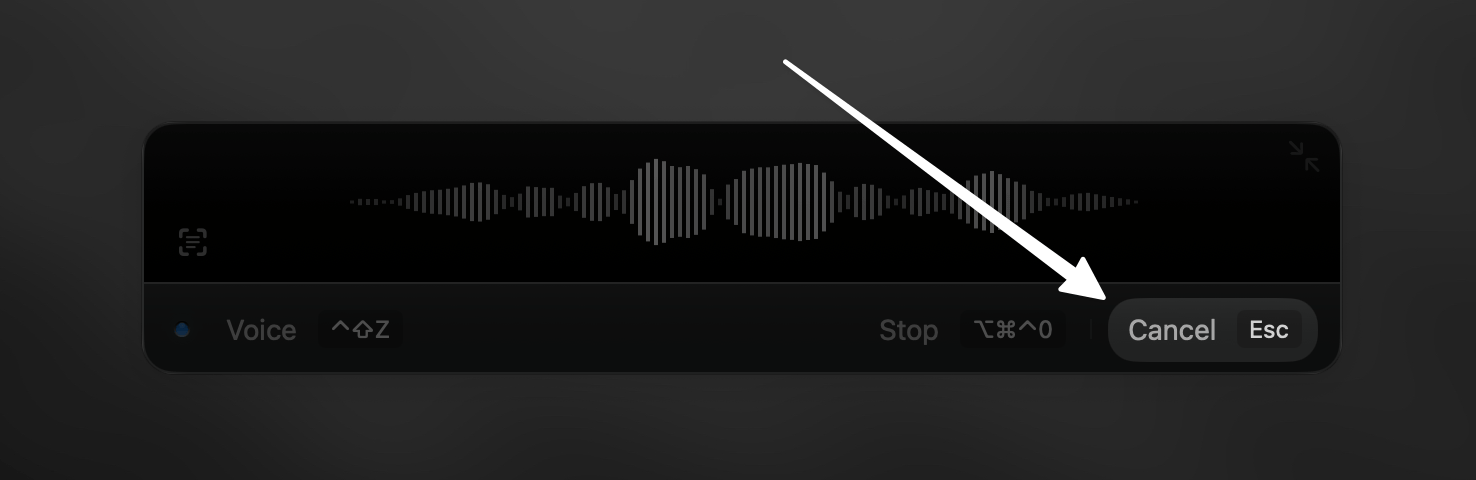 Click here to cancel your current dictation session or use your assigned keyboard shortcut. For recordings longer than 30 seconds, Superwhisper displays a confirmation message to prevent accidental cancellations. Recordings under 30 seconds cancel immediately.
***
## Mini Recording Window
The mini recording window provides a compact yet feature-rich interface for controlling Superwhisper.
### Always-Active Mini Window
[In Advanced Settings](settings-advanced#recording-window), you can configure the mini window to remain active even when idle. This creates a small visual indicator that's always accessible.
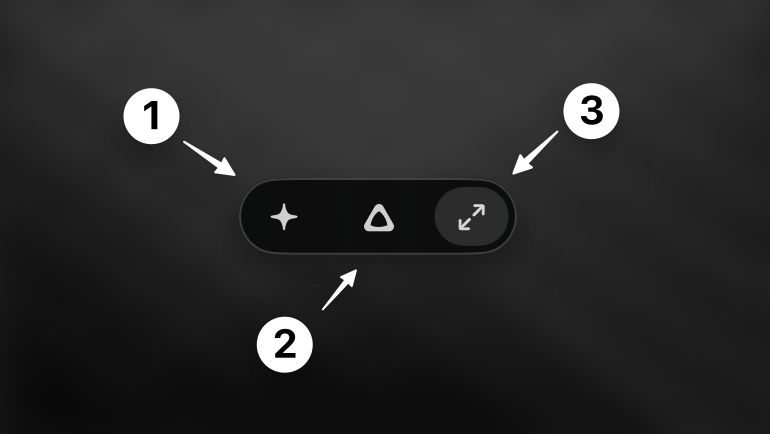
When you hover over the mini window indicator, a control panel appears with three options:
1. Change Mode
2. Start Recording
3. Expand to Regular Window
Click here to cancel your current dictation session or use your assigned keyboard shortcut. For recordings longer than 30 seconds, Superwhisper displays a confirmation message to prevent accidental cancellations. Recordings under 30 seconds cancel immediately.
***
## Mini Recording Window
The mini recording window provides a compact yet feature-rich interface for controlling Superwhisper.
### Always-Active Mini Window
[In Advanced Settings](settings-advanced#recording-window), you can configure the mini window to remain active even when idle. This creates a small visual indicator that's always accessible.
When you hover over the mini window indicator, a control panel appears with three options:
1. Change Mode
2. Start Recording
3. Expand to Regular Window
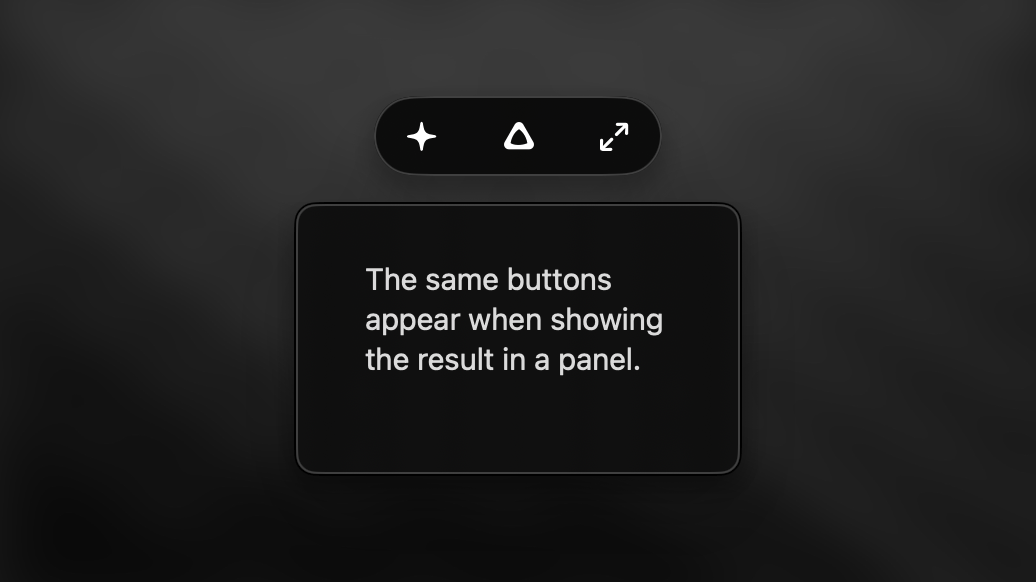
 These same controls (Change Mode, Start Recording, Expand) also appear after a dictation request completes, particularly when results aren't automatically pasted to the front application.
 ### Recording with the Mini Window
You can start recording either by:
* Clicking the recording button in the mini window
* Using your standard keyboard shortcut
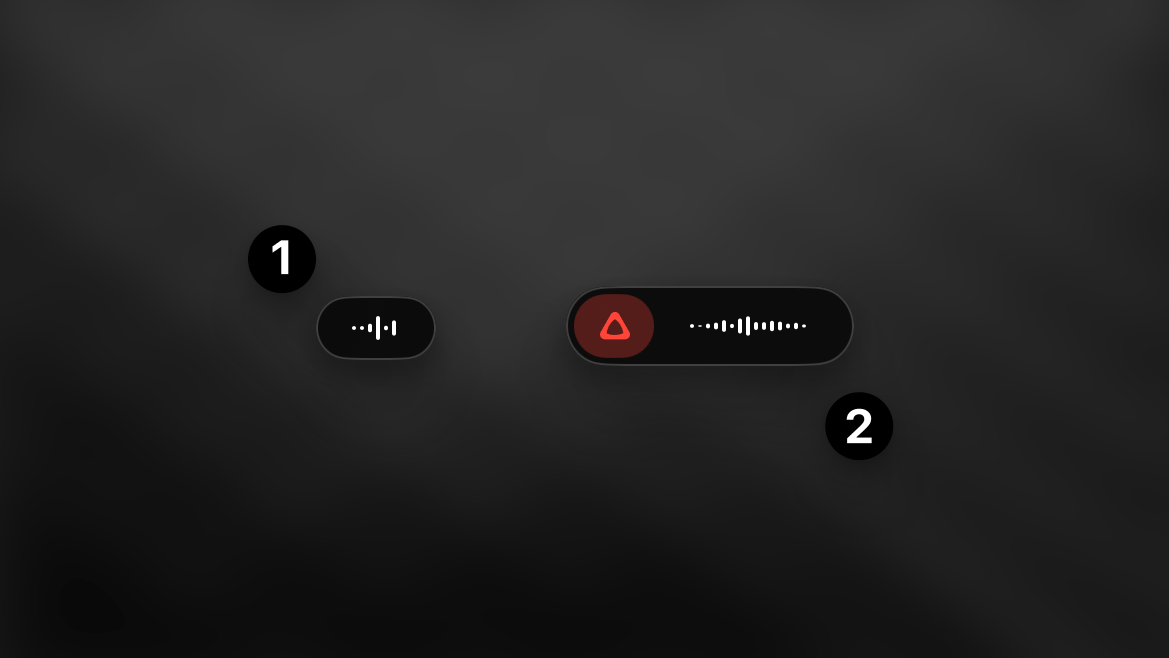
During recording, the mini window displays audio waveforms similar to the main window (1). When you hover over the mini window while recording (2), a stop button appears to end the recording and begin processing.
### Recording with the Mini Window
You can start recording either by:
* Clicking the recording button in the mini window
* Using your standard keyboard shortcut
During recording, the mini window displays audio waveforms similar to the main window (1). When you hover over the mini window while recording (2), a stop button appears to end the recording and begin processing.
 ### Additional Mini Window Features
Right-click on the mini window to access a context menu with options to:
* Expand Window
* Open Settings
* Open History
These options are also available during active recording sessions.
## Related Documentation
Learn how to customize the mini window behavior and other Superwhisper settings.
Discover how Superwhisper's context awareness features superpower your dictation. These features help AI understand your needs and deliver smarter, more accurate results.
### Additional Mini Window Features
Right-click on the mini window to access a context menu with options to:
* Expand Window
* Open Settings
* Open History
These options are also available during active recording sessions.
## Related Documentation
Learn how to customize the mini window behavior and other Superwhisper settings.
Discover how Superwhisper's context awareness features superpower your dictation. These features help AI understand your needs and deliver smarter, more accurate results.