> ## Documentation Index
> Fetch the complete documentation index at: https://superwhisper-docs-cloud-model-rate-limits.mintlify.site/llms.txt
> Use this file to discover all available pages before exploring further.
# Menu Bar Icon
> Learn about the Superwhisper menu bar icon, its status indicators, and quick access features for efficient dictation.
 ## Overview
The Superwhisper menu bar icon is a crucial interface element that provides real-time status updates and quick access to key functions.
***
## Status Indicator Dot
The menu bar icon features a color-coded dot that indicates the current status of Superwhisper:
Model loading in progress
Active recording in progress
Processing dictation
Processing completed
***
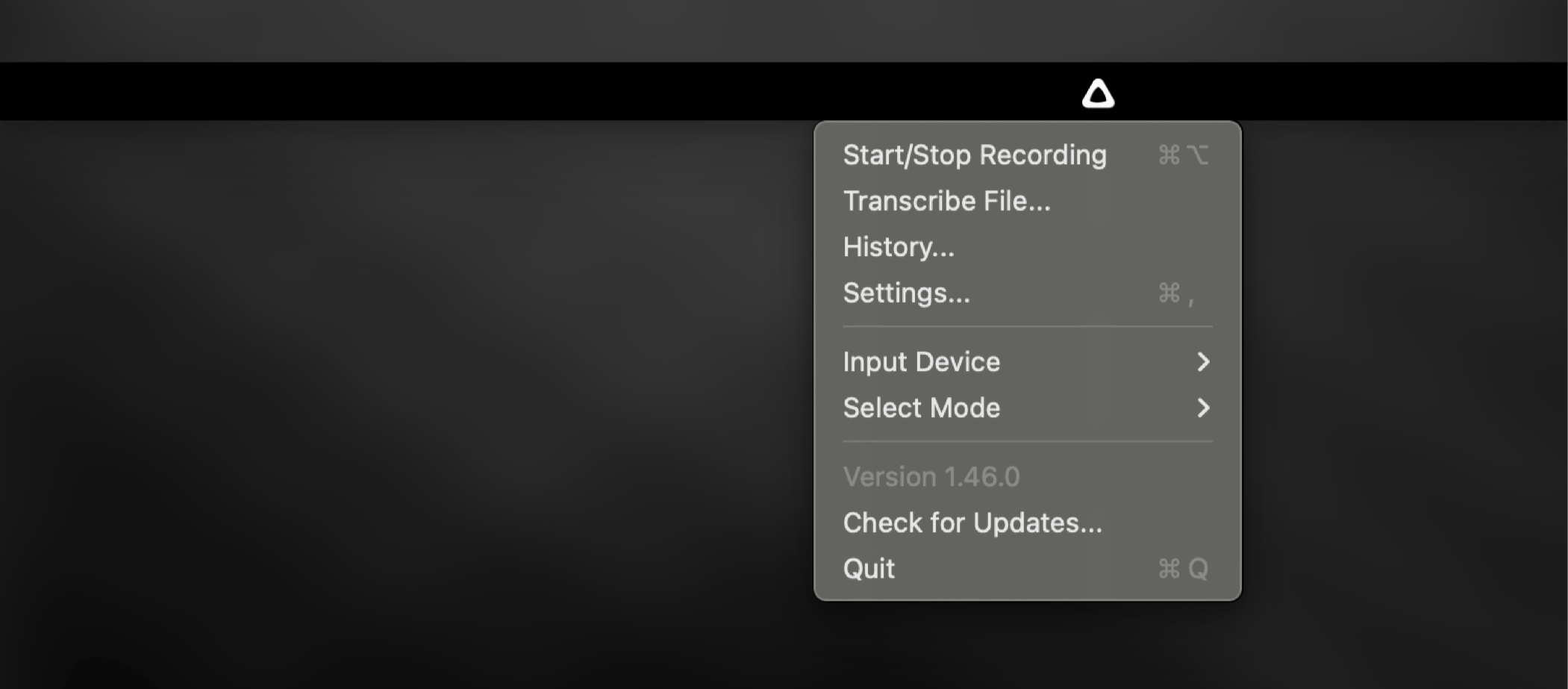
## Menu Bar Options
* Start/Stop recording
* Transcribe external files
* Access Superwhisper history
* Open main settings window
* Change input device
* Change active mode
* Check for updates
* Quit application
***
## Interaction Options
The Superwhisper menu bar icon provides two main interaction modes:
Clicking the icon opens the menu with all available options
You can enable this in the [advanced settings](settings-advanced#application). This setting changes the default behavior to:
* Left click toggles recording
* Right click opens the full menu
***
The menu bar icon puts Superwhisper's core features at your fingertips. Take time to explore its options - the more you use these quick-access controls, the more natural they'll feel as part of your workflow.
## Overview
The Superwhisper menu bar icon is a crucial interface element that provides real-time status updates and quick access to key functions.
***
## Status Indicator Dot
The menu bar icon features a color-coded dot that indicates the current status of Superwhisper:
Model loading in progress
Active recording in progress
Processing dictation
Processing completed
***
## Menu Bar Options
* Start/Stop recording
* Transcribe external files
* Access Superwhisper history
* Open main settings window
* Change input device
* Change active mode
* Check for updates
* Quit application
***
## Interaction Options
The Superwhisper menu bar icon provides two main interaction modes:
Clicking the icon opens the menu with all available options
You can enable this in the [advanced settings](settings-advanced#application). This setting changes the default behavior to:
* Left click toggles recording
* Right click opens the full menu
***
The menu bar icon puts Superwhisper's core features at your fingertips. Take time to explore its options - the more you use these quick-access controls, the more natural they'll feel as part of your workflow.