> ## Documentation Index
> Fetch the complete documentation index at: https://superwhisper-docs-cloud-model-rate-limits.mintlify.site/llms.txt
> Use this file to discover all available pages before exploring further.
# History Management
> Learn how to schedule automatic deletion of Superwhisper history files using cron jobs.
Deleting files with cron is powerful. A mistake in the folder path or pattern can remove important files. Always double-check the folder path in your cron job, especially if you have moved your Superwhisper recordings folder!
## Overview
Superwhisper gives you full control over your history files, including audio recordings and their associated transcription data. Over time, these files can accumulate and take up storage space. Currently, Superwhisper does not offer a built-in feature to bulk-delete or schedule cleanup of multiple history items. Instead, you can manage your files manually or automate the process using a **cron job.**
You remain in control of your Superwhisper files. Automated cleanup is optional and fully customizable to fit your workflow.
***
## What Is a Cron Job?
A **cron job** is a scheduled task that runs automatically at specified times. You can use a cron job to regularly delete old Superwhisper history files and keep your recordings folder tidy without manual effort.
## Where Are My History Files Stored?
By default, Superwhisper saves recordings and their metadata in:
```
~/Documents/superwhisper/recordings
```
* `~` refers to your user’s home folder.
* This location [can be changed in Superwhisper’s settings](settings-advanced#folder-location). If you have moved your recordings folder, make sure to update the folder path in the instructions below.
***
## Why Set Up Automatic Cleanup?
* **Save disk space:** Prevent your storage from filling up with old files.
* **Stay organized:** Remove outdated recordings and transcriptions.
* **Customize retention:** Decide how long you want to keep your files.
***
## How to Set Up a Scheduled Cleanup
Follow these steps to automatically delete old history files from your Superwhisper recordings folder.
Launch the Terminal application on your Mac.
Type the following command and press Enter:
```
crontab -e
```
This opens your personal cron schedule for editing.
Copy and paste the following line into your crontab. This example deletes any recording folder older than 24 hours (1 day) at midnight every day:
```
0 0 * * * /usr/bin/find "$HOME/Documents/superwhisper/recordings" -mindepth 1 -maxdepth 1 -type d -name "[0-9]*" -mmin +1440 -exec /bin/rm -rf {} \;
```
* If your recordings folder is in a different location, replace `$HOME/Documents/superwhisper/recordings` with the correct path.
* The example above deletes folders (and their contents) older than 1 day. You can adjust the schedule and age as needed (see below).
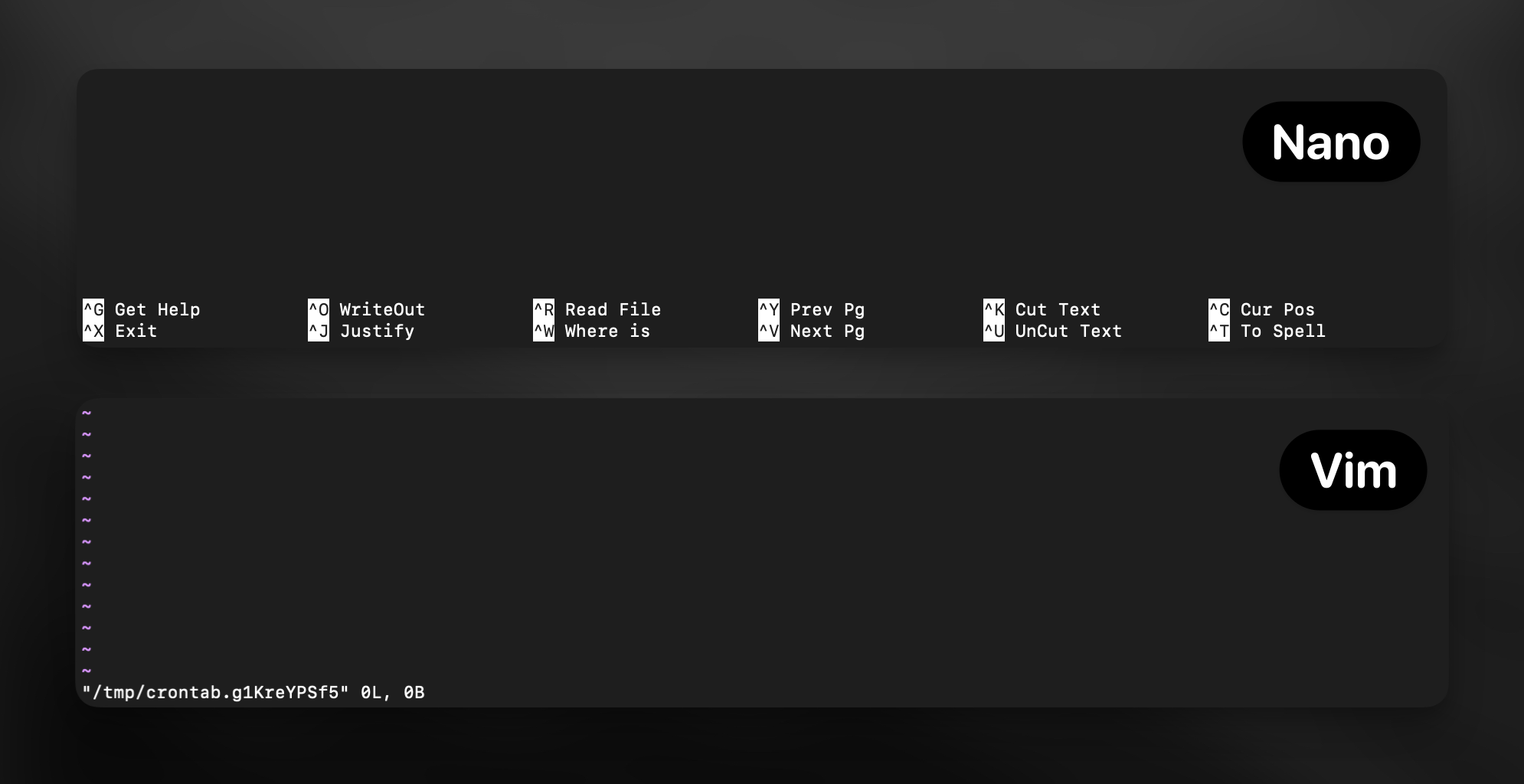
* If using **nano**, press `Ctrl+O` (then Enter) to save, and `Ctrl+X` to exit.
* If using **vim**, press `Esc`, type `:wq`, then press Enter.
 To confirm your cron job was added, type:
```
crontab -l
```
You should see your new cleanup rule listed.
***
## Customizing Your Cleanup Schedule
You can modify how often and what files your cron job deletes:
* **Every hour:**\
To confirm your cron job was added, type:
```
crontab -l
```
You should see your new cleanup rule listed.
***
## Customizing Your Cleanup Schedule
You can modify how often and what files your cron job deletes:
* **Every hour:**\
0 \* \* \* \* ...
* **Every 30 minutes:**\
\*/30 \* \* \* \* ...
* **Once a week:**\
0 0 \* \* 0 ...
* **Older than 2 days:**\
Change -mmin +1440 to -mmin +2880
* **Older than 1 hour:**\
Use -mmin +60
***
## Preview Before Deleting (Optional)
To see which folders would be deleted without actually removing them, run:
```
/usr/bin/find "$HOME/Documents/superwhisper/recordings" -mindepth 1 -maxdepth 1 -type d -name "[0-9]*" -mmin +1440 -print
```
This lists folders older than 1 day. Adjust the path and time as needed.
***