> ## Documentation Index
> Fetch the complete documentation index at: https://superwhisper-docs-cloud-model-rate-limits.mintlify.site/llms.txt
> Use this file to discover all available pages before exploring further.
# Backing Up Settings
> Learn how to backup and restore your Superwhisper settings across different devices or for safekeeping.
## Overview
Backing up your Superwhisper settings provides several benefits:
* **Device Migration**: Transfer your setup when upgrading to a new computer
* **Multi-Device Usage**: Maintain consistent experience across multiple devices
* **Data Protection**: Safeguard against accidental deletion or system failures
* **Configuration Sharing**: Share specialized dictation setups with colleagues
* **Version Control**: Keep snapshots of your configuration at different stages
***
## Configuration Location
By default, Superwhisper saves all configuration files in the **\~/Documents/Superwhisper** folder on your system. If you prefer to store your Superwhisper files in a different location, you can do so from within the Advanced settings in the Configuration tab.
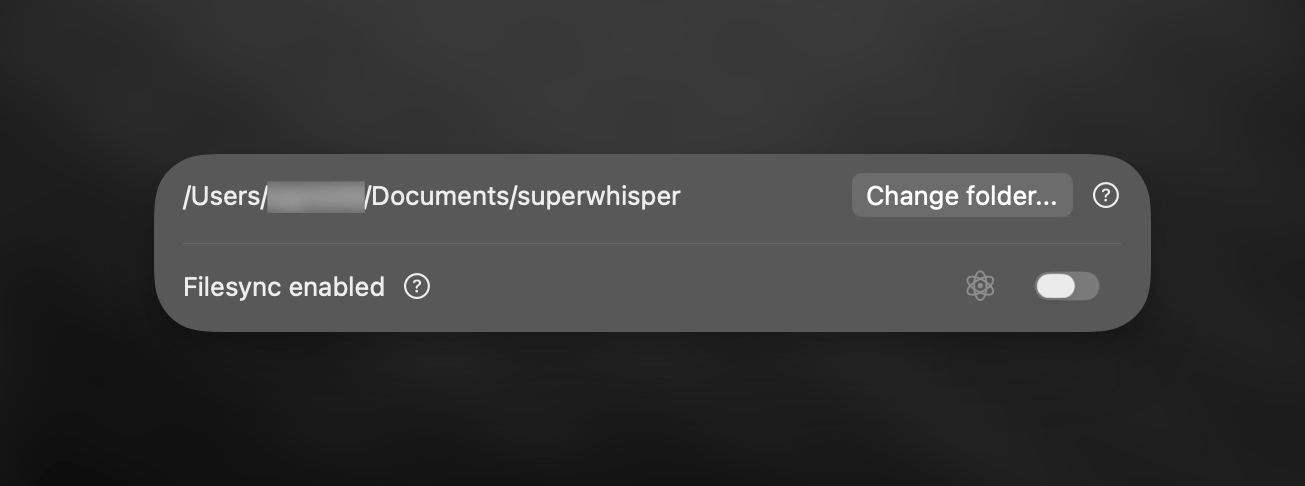 This folder contains several important subdirectories:
* **Models**: Contains configuration files of custom models you've added
* **Modes**: Stores all modes you've created or customized
* **Settings**: Includes vocabulary lists and text replacements
* **Recordings**: Contains your dictation history files
***
## How to Backup Settings
Navigate to the Documents/Superwhisper folder on your system, or to your custom location if you've changed the default.
Choose which elements to backup based on your needs:
* Back up specific folders (Models, Modes, Settings) for targeted backups
* Skip the Recordings folder if you don't need dictation history
* Copy the entire Superwhisper folder for a complete backup
Check that you've included all folders needed for your specific backup purpose.
***
## Restoring Settings to Another Device
To restore settings to any device, simply copy your backup folders to the Superwhisper configuration location. Remember to restart the application afterward for changes to take effect.
This folder contains several important subdirectories:
* **Models**: Contains configuration files of custom models you've added
* **Modes**: Stores all modes you've created or customized
* **Settings**: Includes vocabulary lists and text replacements
* **Recordings**: Contains your dictation history files
***
## How to Backup Settings
Navigate to the Documents/Superwhisper folder on your system, or to your custom location if you've changed the default.
Choose which elements to backup based on your needs:
* Back up specific folders (Models, Modes, Settings) for targeted backups
* Skip the Recordings folder if you don't need dictation history
* Copy the entire Superwhisper folder for a complete backup
Check that you've included all folders needed for your specific backup purpose.
***
## Restoring Settings to Another Device
To restore settings to any device, simply copy your backup folders to the Superwhisper configuration location. Remember to restart the application afterward for changes to take effect.