> ## Documentation Index
> Fetch the complete documentation index at: https://superwhisper-docs-cloud-model-rate-limits.mintlify.site/llms.txt
> Use this file to discover all available pages before exploring further.
# iOS App Activation
> Extend Superwhisper's powerful dictation capabilities to your mobile device with the iOS app.
Your Superwhisper Pro license works on all platforms—Mac, Windows, iPhone, and iPad. You don't need to buy separately.
## Step-by-Step (Mac Users)
Get Superwhisper for iOS from the [App Store](https://apps.apple.com/us/app/superwhisper/id6471464415).
Once installed, open the iOS app and navigate to Settings. Look for the "superwhisper PRO" option, which allows you to activate your license on your mobile device.
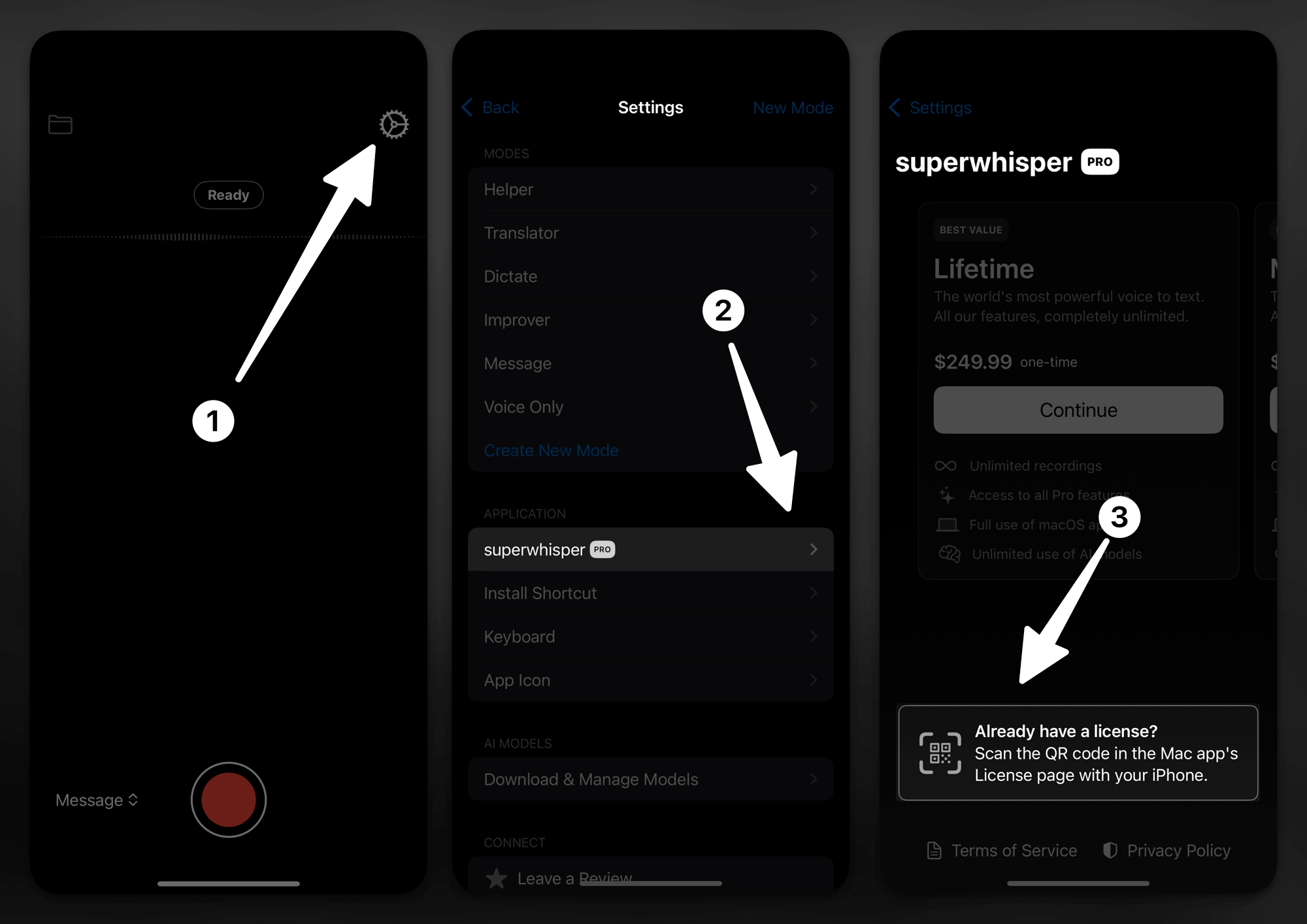 To complete activation, you'll need to scan a QR code from your desktop app:
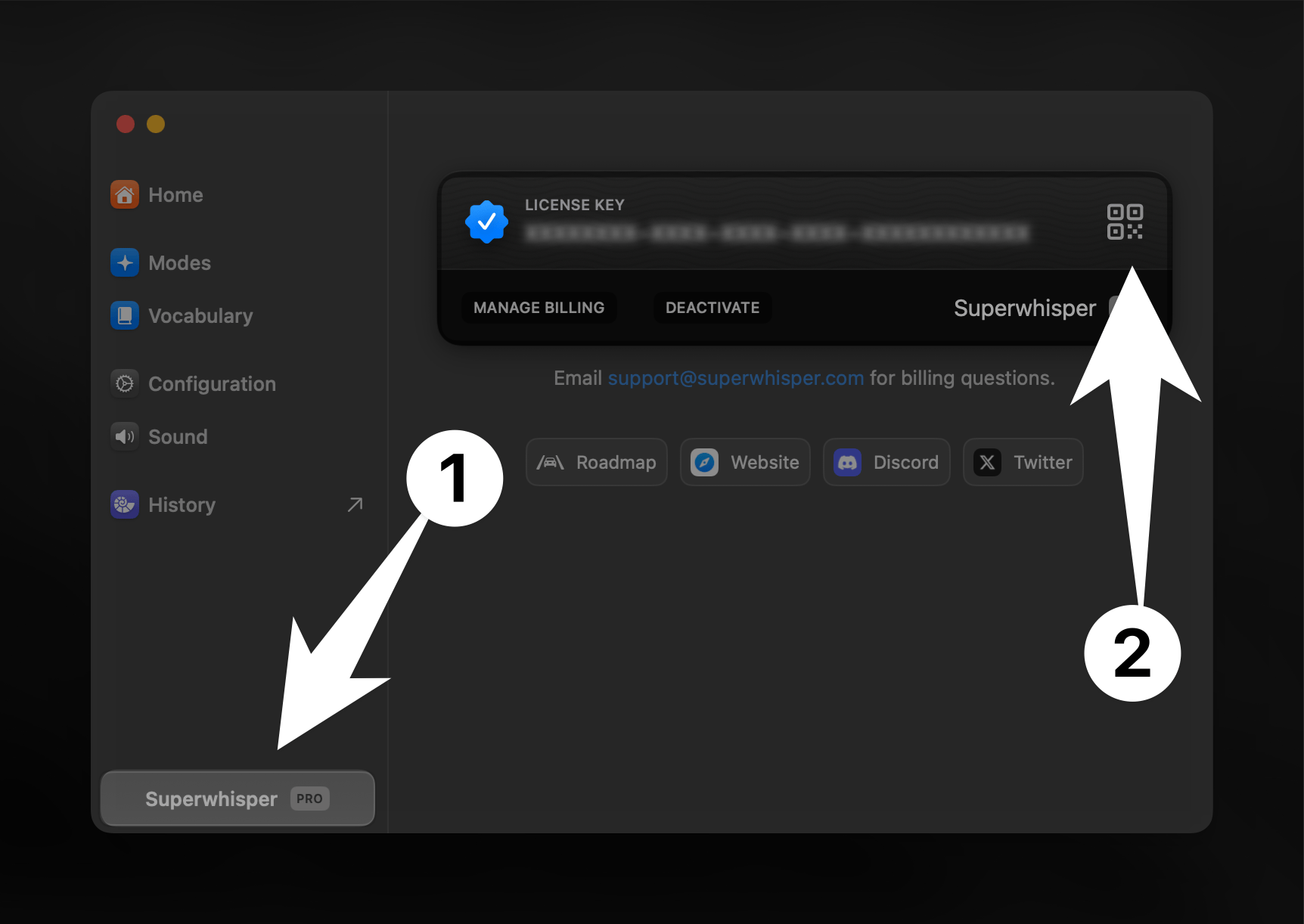
1. In the desktop app, open the Settings panel. At the bottom left, click the button labeled “Superwhisper” to view your license details.
2. Locate the mobile activation QR code
3. Use your iOS device to scan the displayed code
To complete activation, you'll need to scan a QR code from your desktop app:
1. In the desktop app, open the Settings panel. At the bottom left, click the button labeled “Superwhisper” to view your license details.
2. Locate the mobile activation QR code
3. Use your iOS device to scan the displayed code
 ***
## Step-by-Step (Windows Users)
The Windows app does not currently include a QR code for iOS activation. Use the manual method below.
Get Superwhisper for iOS from the [App Store](https://apps.apple.com/us/app/superwhisper/id6471464415).
Open Superwhisper on your Windows PC and go to Settings to locate your license key.
On your iPhone, open Safari and enter this URL (replace YOUR-KEY with your actual license key):
```
superwhisper://license/YOUR-KEY
```
Example: `superwhisper://license/XXXXXXXX-XXXX-XXXX-XXXX-XXXXXXXXXXXX`
Tap "Open" when prompted to activate Superwhisper.
**Alternative:** Open the Superwhisper iOS app > Settings > Superwhisper Pro > Enter your license key manually.
***
## Troubleshooting
**Having trouble with the QR code? Here's a simple fix:**
1. Open the QR code screen on your Mac
2. Double-click your license key (you'll see "Copied to clipboard")
3. Create the activation link:
* Start with: `superwhisper://license/`
* Paste your key after the slash
* Example: `superwhisper://license/XXXXXXXX-XXXX-XXXX-XXXX-XXXXXXXXXXXX`
4. Open this link on your iOS device
This manual activation method works just as well as the QR code scan.
***
## Didn't Get Your License Key?
If you paid for Superwhisper Pro but didn't receive a license key:
1. Check your spam or promotions folder for an email from `superwhisper.com`
2. Confirm the email on your order matches the one you're checking
3. Still nothing? Email [support@superwhisper.com](mailto:support@superwhisper.com) with the email or receipt from your purchase and we'll resend it
***
If you bought Superwhisper through the App Store and are experiencing activation issues, follow this guide to help you resolve your problem.
***
## Step-by-Step (Windows Users)
The Windows app does not currently include a QR code for iOS activation. Use the manual method below.
Get Superwhisper for iOS from the [App Store](https://apps.apple.com/us/app/superwhisper/id6471464415).
Open Superwhisper on your Windows PC and go to Settings to locate your license key.
On your iPhone, open Safari and enter this URL (replace YOUR-KEY with your actual license key):
```
superwhisper://license/YOUR-KEY
```
Example: `superwhisper://license/XXXXXXXX-XXXX-XXXX-XXXX-XXXXXXXXXXXX`
Tap "Open" when prompted to activate Superwhisper.
**Alternative:** Open the Superwhisper iOS app > Settings > Superwhisper Pro > Enter your license key manually.
***
## Troubleshooting
**Having trouble with the QR code? Here's a simple fix:**
1. Open the QR code screen on your Mac
2. Double-click your license key (you'll see "Copied to clipboard")
3. Create the activation link:
* Start with: `superwhisper://license/`
* Paste your key after the slash
* Example: `superwhisper://license/XXXXXXXX-XXXX-XXXX-XXXX-XXXXXXXXXXXX`
4. Open this link on your iOS device
This manual activation method works just as well as the QR code scan.
***
## Didn't Get Your License Key?
If you paid for Superwhisper Pro but didn't receive a license key:
1. Check your spam or promotions folder for an email from `superwhisper.com`
2. Confirm the email on your order matches the one you're checking
3. Still nothing? Email [support@superwhisper.com](mailto:support@superwhisper.com) with the email or receipt from your purchase and we'll resend it
***
If you bought Superwhisper through the App Store and are experiencing activation issues, follow this guide to help you resolve your problem.