> ## Documentation Index
> Fetch the complete documentation index at: https://superwhisper-docs-cloud-model-rate-limits.mintlify.site/llms.txt
> Use this file to discover all available pages before exploring further.
# Model Management
> Control which AI models your team can use, configure custom providers, and troubleshoot connection issues.
## Cloud AI Models
### Allow Cloud AI Models Toggle
From the **Models** tab in your dashboard, you can control whether your members are allowed to use Superwhisper's hosted cloud models.
**When enabled:**
* Members can use Superwhisper's online AI models for transcription
* No additional configuration required
* Models are hosted and maintained by Superwhisper
**When disabled:**
* Members can only use custom models that you configure
* Useful for organizations requiring all AI processing through approved vendors
* Ensures data only flows through your organization's configured providers
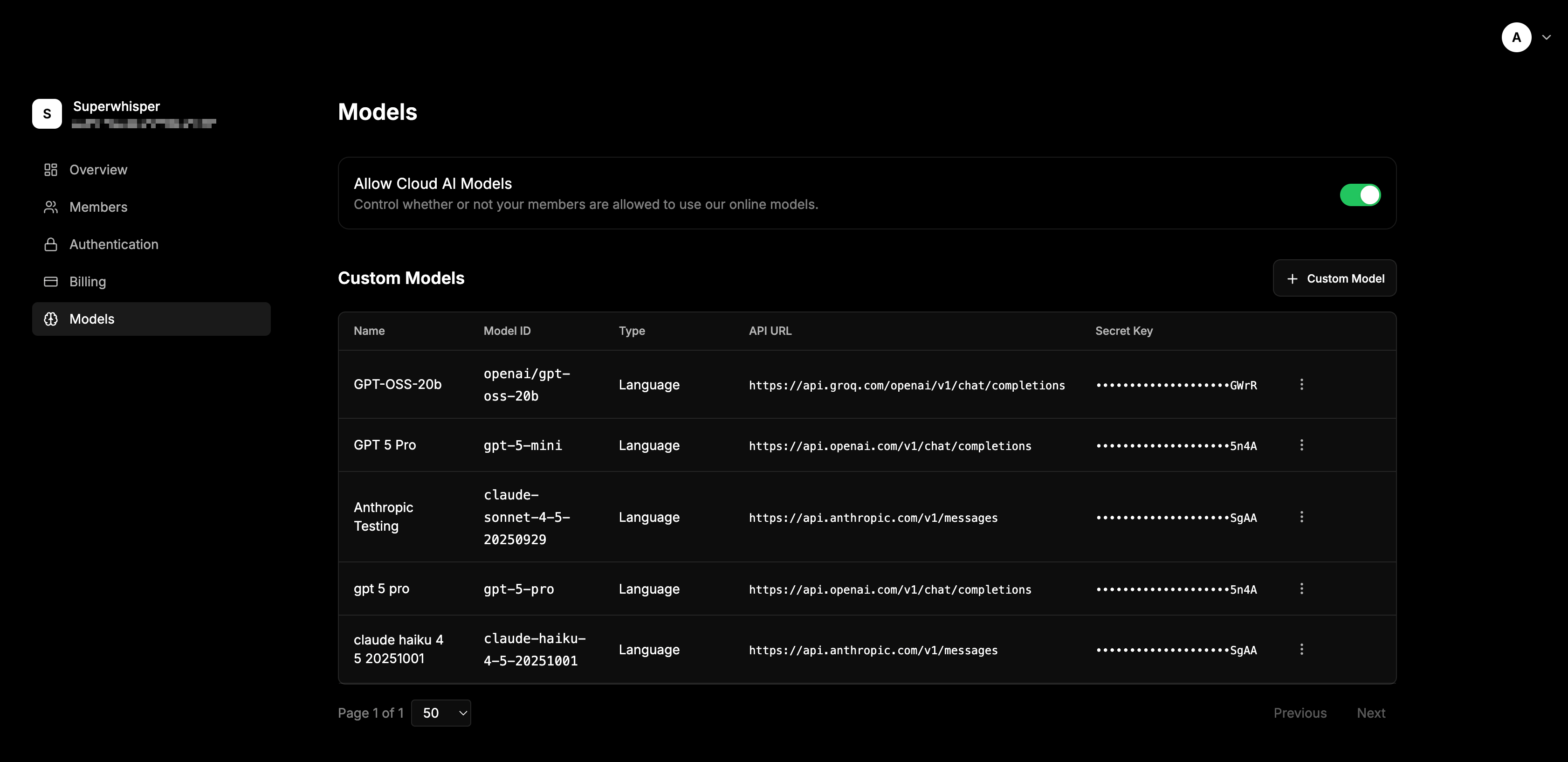 ## Custom Models
### Overview
Custom models let your members use specific AI models from any provider you configure.
### Adding a Custom Model
To add a custom model:
1. Navigate to the **Models** tab in your dashboard
2. Click the **+ Custom Model** button at the top right
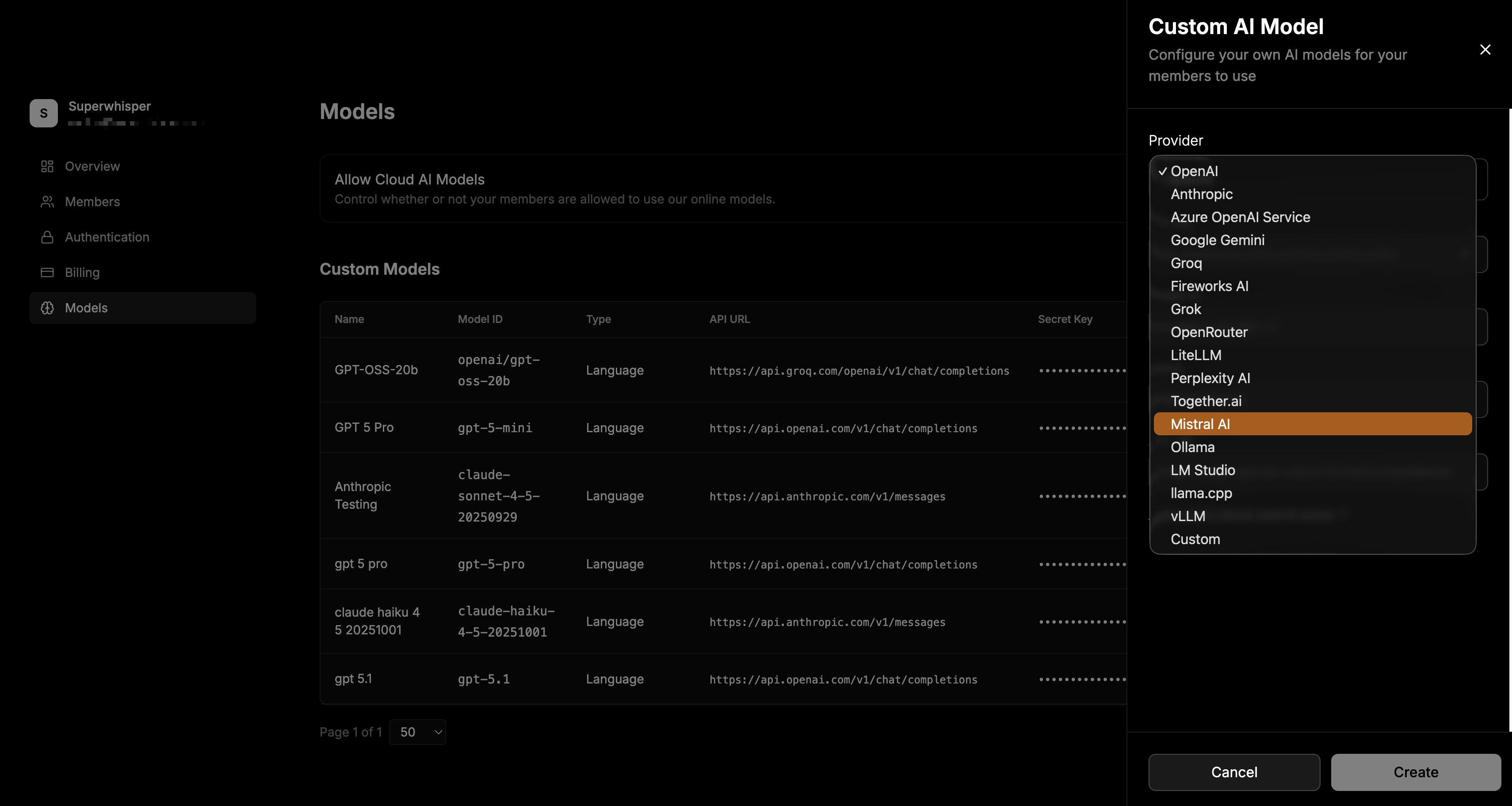
3. Select your provider from the dropdown list, or Custom if your provider is not listed
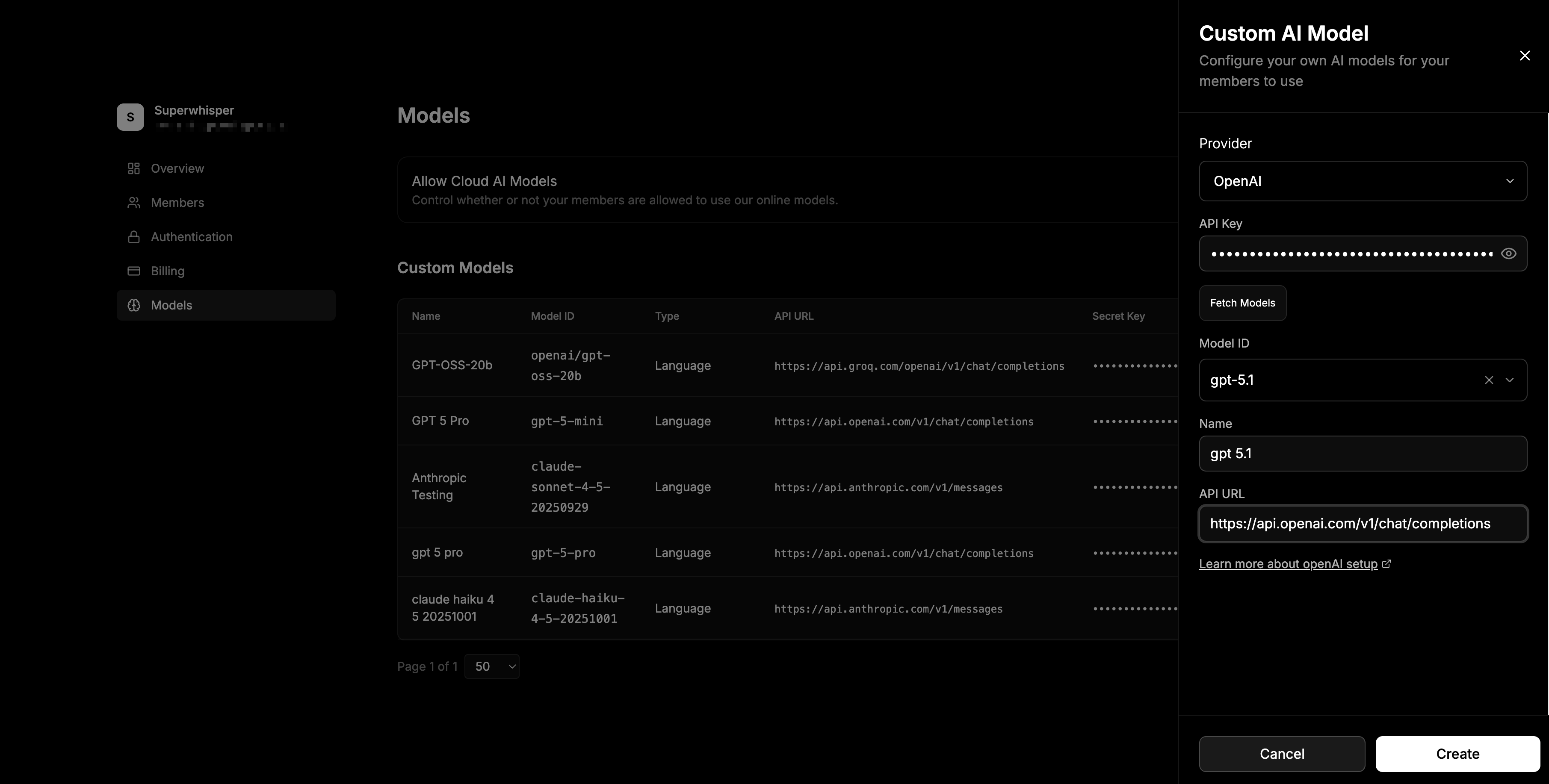
4. Input your API Key for your provider, if applicable we will attempt to fetch models you have access to in your instance
Your API Key is encrypted at rest for security
5. Input other model details, and save
* **Name** - A friendly name for the model (e.g., "GPT-5 Pro", "Anthropic Testing")
* **Model ID** - The provider's model identifier (e.g., `gpt-5-mini`, `claude-sonnet-4-5-20250929`)
* **API URL** - The endpoint URL for the model API
Each selected provider will have reference documentation linked at the bottom of custom model create
## Custom Models
### Overview
Custom models let your members use specific AI models from any provider you configure.
### Adding a Custom Model
To add a custom model:
1. Navigate to the **Models** tab in your dashboard
2. Click the **+ Custom Model** button at the top right
3. Select your provider from the dropdown list, or Custom if your provider is not listed
4. Input your API Key for your provider, if applicable we will attempt to fetch models you have access to in your instance
Your API Key is encrypted at rest for security
5. Input other model details, and save
* **Name** - A friendly name for the model (e.g., "GPT-5 Pro", "Anthropic Testing")
* **Model ID** - The provider's model identifier (e.g., `gpt-5-mini`, `claude-sonnet-4-5-20250929`)
* **API URL** - The endpoint URL for the model API
Each selected provider will have reference documentation linked at the bottom of custom model create
 Once configured, your custom models will appear in the Custom Models table and can be modified / deleted
### Custom Model Distribution
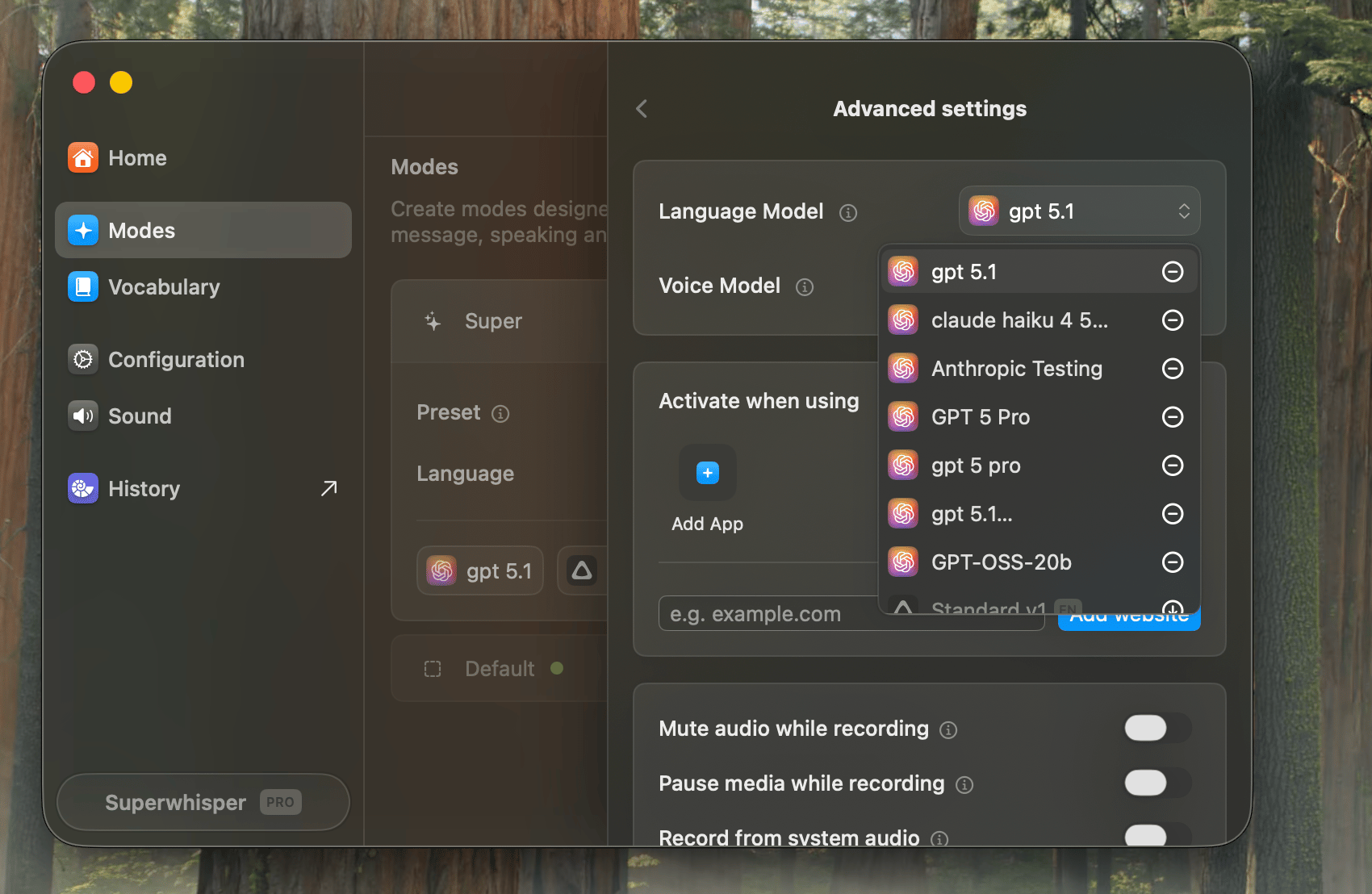
Members receive access to your configured models every time they start the app. They can pick which model to use when setting up each mode.
Once configured, your custom models will appear in the Custom Models table and can be modified / deleted
### Custom Model Distribution
Members receive access to your configured models every time they start the app. They can pick which model to use when setting up each mode.
 ## Use Cases
### Cloud Models Only
Enable "Allow Cloud AI Models" and don't configure any custom models. The default setup. Members use Superwhisper's hosted models with no extra configuration.
### Custom Models Only
Disable "Allow Cloud AI Models" and configure one or more custom models. All AI processing goes through your approved providers with your own API credentials.
### Hybrid Approach
Enable "Allow Cloud AI Models" and configure custom models. Members choose between Superwhisper's hosted models and your custom ones based on their needs.
## Troubleshooting Custom Models
Most custom model issues come from a mismatch between the API URL, the model ID, or the API key. Use the table below to map the error you're seeing to a likely cause.
| Error | Likely cause | What to check |
| ------------------------------------------------- | ------------------------------------------------------------------------- | -------------------------------------------------------------------------------------------------------------------------------------- |
| `401 Unauthorized` / `Invalid API key` | API key wrong, expired, or scoped to a different project | Regenerate the key in your provider's dashboard, paste it fresh, check key scope |
| `403 Forbidden` / `Provider rejected the request` | Key is valid but doesn't have access to that specific model or deployment | Confirm the model is enabled on your provider account; for Azure, confirm the deployment exists and the key has access to it |
| `404 Not Found` on the API URL | Endpoint URL is wrong or missing a path segment | See provider-specific notes below |
| `404` on the model | Model ID doesn't match what the provider expects | For Azure, use your **deployment name**, not the model name. For OpenAI-compatible endpoints, copy the exact ID from the provider docs |
| `429 Too Many Requests` | Rate limit or quota on the provider account | Check usage limits on the provider dashboard |
| `Timeout` / no response | Endpoint unreachable from the user's network | Confirm the endpoint is publicly reachable, or that your VPN allows it |
### Azure OpenAI
* **API URL format:** `https://{resource-name}.openai.azure.com/openai/deployments/{deployment-name}/chat/completions?api-version=2024-02-15-preview`
* **Model ID:** use the **deployment name** you created in Azure AI Studio, not the underlying model name (e.g., `gpt-4o-mycompany`, not `gpt-4o`)
* The deployment must be created and in `Succeeded` state before adding it in Superwhisper
### OpenAI-Compatible Endpoints
* **API URL format:** the base URL up to and including `/v1` (e.g., `https://api.together.xyz/v1`)
* **Model ID:** the exact model slug from the provider's docs
* The endpoint must implement `/chat/completions` to work with Superwhisper
### Self-Hosted Endpoints
* The endpoint must be publicly reachable from the user's machine. Endpoints behind a corporate VPN will only work for users on that VPN
* TLS is required. HTTP-only endpoints won't connect
If the error persists, email [enterprise@superwhisper.com](mailto:enterprise@superwhisper.com) with the provider, model ID, and the exact error message.
## Related
* [Configuration](/enterprise/configuration), the org-wide toggle for cloud models lives here
* [Amazon Bedrock](/enterprise/amazon-bedrock), configure Bedrock as a custom model provider
* [Sensitive Data Best Practices](/security/sensitive-data), data flow implications of each model setup
## Support
Questions about model management or custom model configuration? Email [enterprise@superwhisper.com](mailto:enterprise@superwhisper.com), request a shared Slack channel, or schedule a call.
## Use Cases
### Cloud Models Only
Enable "Allow Cloud AI Models" and don't configure any custom models. The default setup. Members use Superwhisper's hosted models with no extra configuration.
### Custom Models Only
Disable "Allow Cloud AI Models" and configure one or more custom models. All AI processing goes through your approved providers with your own API credentials.
### Hybrid Approach
Enable "Allow Cloud AI Models" and configure custom models. Members choose between Superwhisper's hosted models and your custom ones based on their needs.
## Troubleshooting Custom Models
Most custom model issues come from a mismatch between the API URL, the model ID, or the API key. Use the table below to map the error you're seeing to a likely cause.
| Error | Likely cause | What to check |
| ------------------------------------------------- | ------------------------------------------------------------------------- | -------------------------------------------------------------------------------------------------------------------------------------- |
| `401 Unauthorized` / `Invalid API key` | API key wrong, expired, or scoped to a different project | Regenerate the key in your provider's dashboard, paste it fresh, check key scope |
| `403 Forbidden` / `Provider rejected the request` | Key is valid but doesn't have access to that specific model or deployment | Confirm the model is enabled on your provider account; for Azure, confirm the deployment exists and the key has access to it |
| `404 Not Found` on the API URL | Endpoint URL is wrong or missing a path segment | See provider-specific notes below |
| `404` on the model | Model ID doesn't match what the provider expects | For Azure, use your **deployment name**, not the model name. For OpenAI-compatible endpoints, copy the exact ID from the provider docs |
| `429 Too Many Requests` | Rate limit or quota on the provider account | Check usage limits on the provider dashboard |
| `Timeout` / no response | Endpoint unreachable from the user's network | Confirm the endpoint is publicly reachable, or that your VPN allows it |
### Azure OpenAI
* **API URL format:** `https://{resource-name}.openai.azure.com/openai/deployments/{deployment-name}/chat/completions?api-version=2024-02-15-preview`
* **Model ID:** use the **deployment name** you created in Azure AI Studio, not the underlying model name (e.g., `gpt-4o-mycompany`, not `gpt-4o`)
* The deployment must be created and in `Succeeded` state before adding it in Superwhisper
### OpenAI-Compatible Endpoints
* **API URL format:** the base URL up to and including `/v1` (e.g., `https://api.together.xyz/v1`)
* **Model ID:** the exact model slug from the provider's docs
* The endpoint must implement `/chat/completions` to work with Superwhisper
### Self-Hosted Endpoints
* The endpoint must be publicly reachable from the user's machine. Endpoints behind a corporate VPN will only work for users on that VPN
* TLS is required. HTTP-only endpoints won't connect
If the error persists, email [enterprise@superwhisper.com](mailto:enterprise@superwhisper.com) with the provider, model ID, and the exact error message.
## Related
* [Configuration](/enterprise/configuration), the org-wide toggle for cloud models lives here
* [Amazon Bedrock](/enterprise/amazon-bedrock), configure Bedrock as a custom model provider
* [Sensitive Data Best Practices](/security/sensitive-data), data flow implications of each model setup
## Support
Questions about model management or custom model configuration? Email [enterprise@superwhisper.com](mailto:enterprise@superwhisper.com), request a shared Slack channel, or schedule a call.