> ## Documentation Index
> Fetch the complete documentation index at: https://superwhisper-docs-cloud-model-rate-limits.mintlify.site/llms.txt
> Use this file to discover all available pages before exploring further.
# Member Management
> Invite users, assign roles, and handle the full member lifecycle in your Superwhisper Enterprise organization.
> **Note:** Before inviting members, ensure you have [set up billing](billing) as billing information is required to provision licenses.
## Adding Members to Your Organization
 How members join depends on the [authentication method](/enterprise/saml-sso) your org has configured. Pick the row that matches your setup.
| Auth method | How members join |
| ---------------------- | --------------------------------------------------------------------------------------------------------------------------------------------------------------------------------------------------- |
| **SAML SSO + SCIM** | Assign users or groups in your identity provider. SCIM grants sign-in permission. Members sign in to the app with their work email and a seat is allocated on first login. No manual invite needed. |
| **SAML SSO (no SCIM)** | Share the [join link](#join-link) or send an [email invite](#email-invite). Members complete SSO with your identity provider on first sign-in. |
| **Google OAuth** | Share the [join link](#join-link) or send an [email invite](#email-invite). Members sign in with their Google Workspace account. |
| **Magic Link** | Share the [join link](#join-link) or send an [email invite](#email-invite). Members receive a one-time email link to complete sign-in. |
If you're using SCIM, see [SCIM Provisioning](/enterprise/scim) for the full just-in-time provisioning flow. Otherwise, use one of the invite options below.
### Join Link
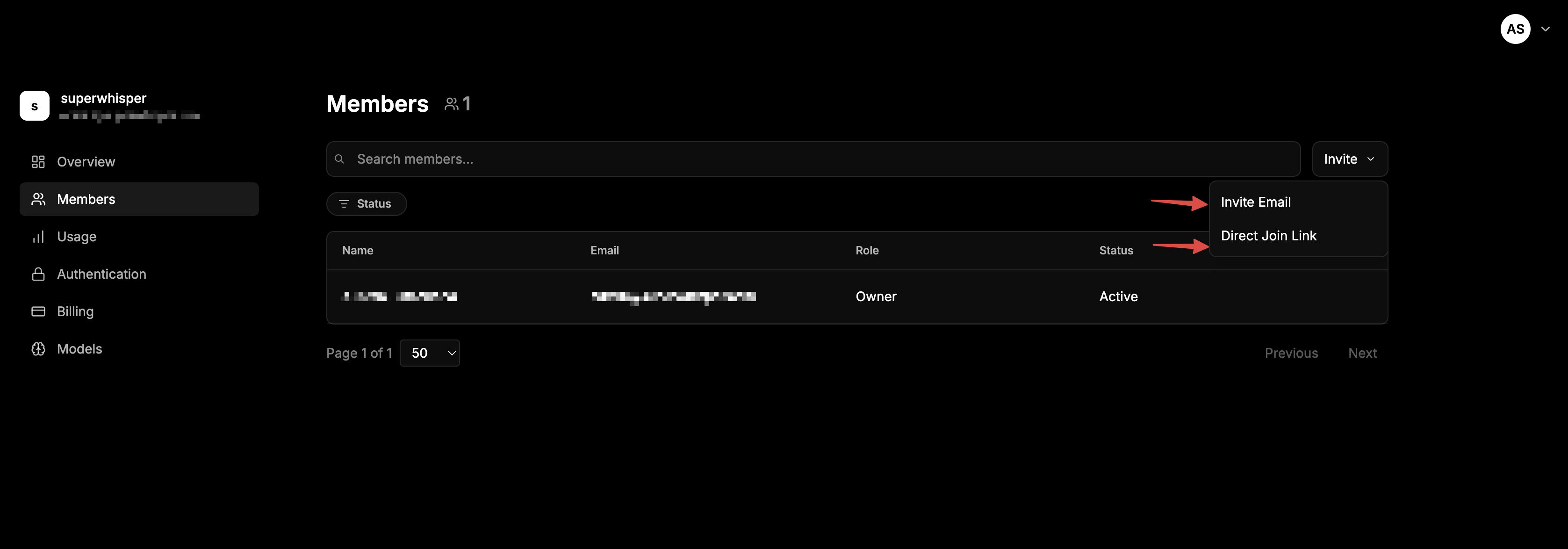
Share a single join link that anyone with the URL can use:
1. Navigate to the **Members** tab in your dashboard
2. Click the **Invite** button at the top right of the Members list
3. Generate a join link
4. Share it with your team
Best for onboarding multiple employees at once or posting in company comms channels.
### Email Invite
Send direct email invitations to specific addresses:
1. Navigate to the **Members** tab in your dashboard
2. Click the **Invite** button at the top right of the Members list
3. Enter the email addresses you want to invite
4. Send the invitations
Best when you want a controlled, trackable onboarding flow.
## Roles & Permissions
Superwhisper Enterprise has three member roles:
| Role | Permissions |
| ---------- | ------------------------------------------------------------------------------------------------------------------------------------------------------------- |
| **Owner** | Full control of the organization, including billing, authentication, members, and models. Can transfer ownership to another member. Only one Owner at a time. |
| **Admin** | Full functionality across the dashboard. Can invite, promote, and remove standard members, but **cannot** downgrade or remove other Admins or Owners. |
| **Member** | Standard seat. Sees only the license and download page in the dashboard. Uses Superwhisper through the app. |
### Transferring Ownership
Ownership is transferred, not shared. There is only one Owner at a time. When an Owner transfers ownership to another member, the original Owner drops to Admin automatically.
### Seat Billing
All members count as billable seats, including Owners and Admins. There are no free admin-only seats. If your IT or security team needs dashboard access without using the product, they still occupy a billable seat.
## Managing Members
Manage existing members from the three-dot menu next to their name in the members list:
* **Elevate Role** - Promote a Member to Admin
* **Transfer Ownership** - Hand the Owner role to another member. The original Owner drops to Admin
* **Change Role** - Adjust a member's permissions
* **Revoke Access** - Remove a member from the organization and free up their seat
Admins cannot perform these actions on other Admins or Owners. That's reserved for Owners.
## Removing Members
You can remove members manually from the dashboard or automatically via [SCIM deprovisioning](/enterprise/scim) in your identity provider.
### What Happens on Removal
* **Their seat is freed** and returns to your available pool for another member
* **Their license is deactivated**, so the next time they open Superwhisper their app falls back to the Free tier or prompts for a new license
* **Their local data stays on their device.** Transcripts, recordings, modes, and vocabulary are stored locally and aren't touched by deactivation
* **Cached organization configuration** clears on next app launch, since the license is no longer active
If you need to ensure all local Superwhisper data is removed from a device, an IT admin should wipe it as part of standard device offboarding (or via your MDM).
### Re-Adding a Former Member
Re-inviting a removed user restores their access and uses a new seat. Their previous local data on that device is intact and picks up where they left off.
## What Members Will See
Once a user from your company logs in or accepts an invite, they see the dashboard with download and activation instructions, the same as you see in the Overview tab as an admin.
Members granted an administrative role see the full admin dashboard. Standard members only see the license and download page.
### Member Onboarding Flow
Once a member has been invited or provisioned via SCIM, the rest of the flow happens in-app:
The member downloads Superwhisper for their platform from [superwhisper.com](https://superwhisper.com). If you're rolling out via [MDM](/enterprise/mdm-deployment), the app is already installed and you can skip this step.
On first launch, the app asks how they want to activate. They pick **Use my company license** instead of entering a personal license key.
How members join depends on the [authentication method](/enterprise/saml-sso) your org has configured. Pick the row that matches your setup.
| Auth method | How members join |
| ---------------------- | --------------------------------------------------------------------------------------------------------------------------------------------------------------------------------------------------- |
| **SAML SSO + SCIM** | Assign users or groups in your identity provider. SCIM grants sign-in permission. Members sign in to the app with their work email and a seat is allocated on first login. No manual invite needed. |
| **SAML SSO (no SCIM)** | Share the [join link](#join-link) or send an [email invite](#email-invite). Members complete SSO with your identity provider on first sign-in. |
| **Google OAuth** | Share the [join link](#join-link) or send an [email invite](#email-invite). Members sign in with their Google Workspace account. |
| **Magic Link** | Share the [join link](#join-link) or send an [email invite](#email-invite). Members receive a one-time email link to complete sign-in. |
If you're using SCIM, see [SCIM Provisioning](/enterprise/scim) for the full just-in-time provisioning flow. Otherwise, use one of the invite options below.
### Join Link
Share a single join link that anyone with the URL can use:
1. Navigate to the **Members** tab in your dashboard
2. Click the **Invite** button at the top right of the Members list
3. Generate a join link
4. Share it with your team
Best for onboarding multiple employees at once or posting in company comms channels.
### Email Invite
Send direct email invitations to specific addresses:
1. Navigate to the **Members** tab in your dashboard
2. Click the **Invite** button at the top right of the Members list
3. Enter the email addresses you want to invite
4. Send the invitations
Best when you want a controlled, trackable onboarding flow.
## Roles & Permissions
Superwhisper Enterprise has three member roles:
| Role | Permissions |
| ---------- | ------------------------------------------------------------------------------------------------------------------------------------------------------------- |
| **Owner** | Full control of the organization, including billing, authentication, members, and models. Can transfer ownership to another member. Only one Owner at a time. |
| **Admin** | Full functionality across the dashboard. Can invite, promote, and remove standard members, but **cannot** downgrade or remove other Admins or Owners. |
| **Member** | Standard seat. Sees only the license and download page in the dashboard. Uses Superwhisper through the app. |
### Transferring Ownership
Ownership is transferred, not shared. There is only one Owner at a time. When an Owner transfers ownership to another member, the original Owner drops to Admin automatically.
### Seat Billing
All members count as billable seats, including Owners and Admins. There are no free admin-only seats. If your IT or security team needs dashboard access without using the product, they still occupy a billable seat.
## Managing Members
Manage existing members from the three-dot menu next to their name in the members list:
* **Elevate Role** - Promote a Member to Admin
* **Transfer Ownership** - Hand the Owner role to another member. The original Owner drops to Admin
* **Change Role** - Adjust a member's permissions
* **Revoke Access** - Remove a member from the organization and free up their seat
Admins cannot perform these actions on other Admins or Owners. That's reserved for Owners.
## Removing Members
You can remove members manually from the dashboard or automatically via [SCIM deprovisioning](/enterprise/scim) in your identity provider.
### What Happens on Removal
* **Their seat is freed** and returns to your available pool for another member
* **Their license is deactivated**, so the next time they open Superwhisper their app falls back to the Free tier or prompts for a new license
* **Their local data stays on their device.** Transcripts, recordings, modes, and vocabulary are stored locally and aren't touched by deactivation
* **Cached organization configuration** clears on next app launch, since the license is no longer active
If you need to ensure all local Superwhisper data is removed from a device, an IT admin should wipe it as part of standard device offboarding (or via your MDM).
### Re-Adding a Former Member
Re-inviting a removed user restores their access and uses a new seat. Their previous local data on that device is intact and picks up where they left off.
## What Members Will See
Once a user from your company logs in or accepts an invite, they see the dashboard with download and activation instructions, the same as you see in the Overview tab as an admin.
Members granted an administrative role see the full admin dashboard. Standard members only see the license and download page.
### Member Onboarding Flow
Once a member has been invited or provisioned via SCIM, the rest of the flow happens in-app:
The member downloads Superwhisper for their platform from [superwhisper.com](https://superwhisper.com). If you're rolling out via [MDM](/enterprise/mdm-deployment), the app is already installed and you can skip this step.
On first launch, the app asks how they want to activate. They pick **Use my company license** instead of entering a personal license key.
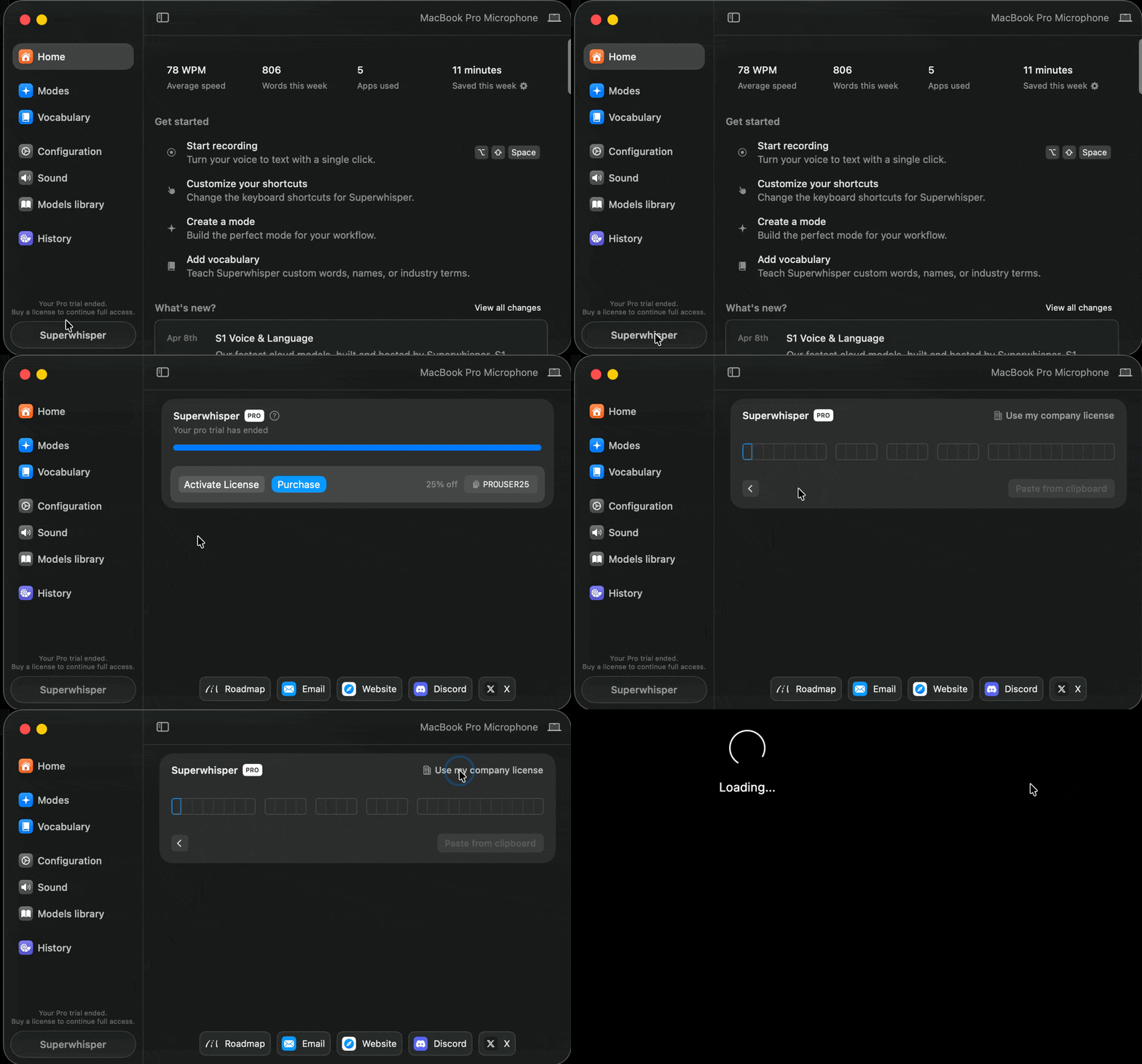 The app opens the sign-in flow tied to your org. Depending on your setup, they'll:
* Complete **SAML SSO** through your identity provider, or
* Sign in with **Google OAuth**, or
* Receive a **magic link** to the email on their invite
Once authenticated, their Enterprise seat is allocated (or matched to their existing SCIM grant) and the license activates.
The app pulls your organization's configuration (allowed models, recording controls, retention, vocabulary) and applies it. The member is ready to use Superwhisper with your policies in place.
Once linked, the license screen shows **Managed by \[your company name]**, confirming the seat is tied to your Enterprise org:
The app opens the sign-in flow tied to your org. Depending on your setup, they'll:
* Complete **SAML SSO** through your identity provider, or
* Sign in with **Google OAuth**, or
* Receive a **magic link** to the email on their invite
Once authenticated, their Enterprise seat is allocated (or matched to their existing SCIM grant) and the license activates.
The app pulls your organization's configuration (allowed models, recording controls, retention, vocabulary) and applies it. The member is ready to use Superwhisper with your policies in place.
Once linked, the license screen shows **Managed by \[your company name]**, confirming the seat is tied to your Enterprise org:
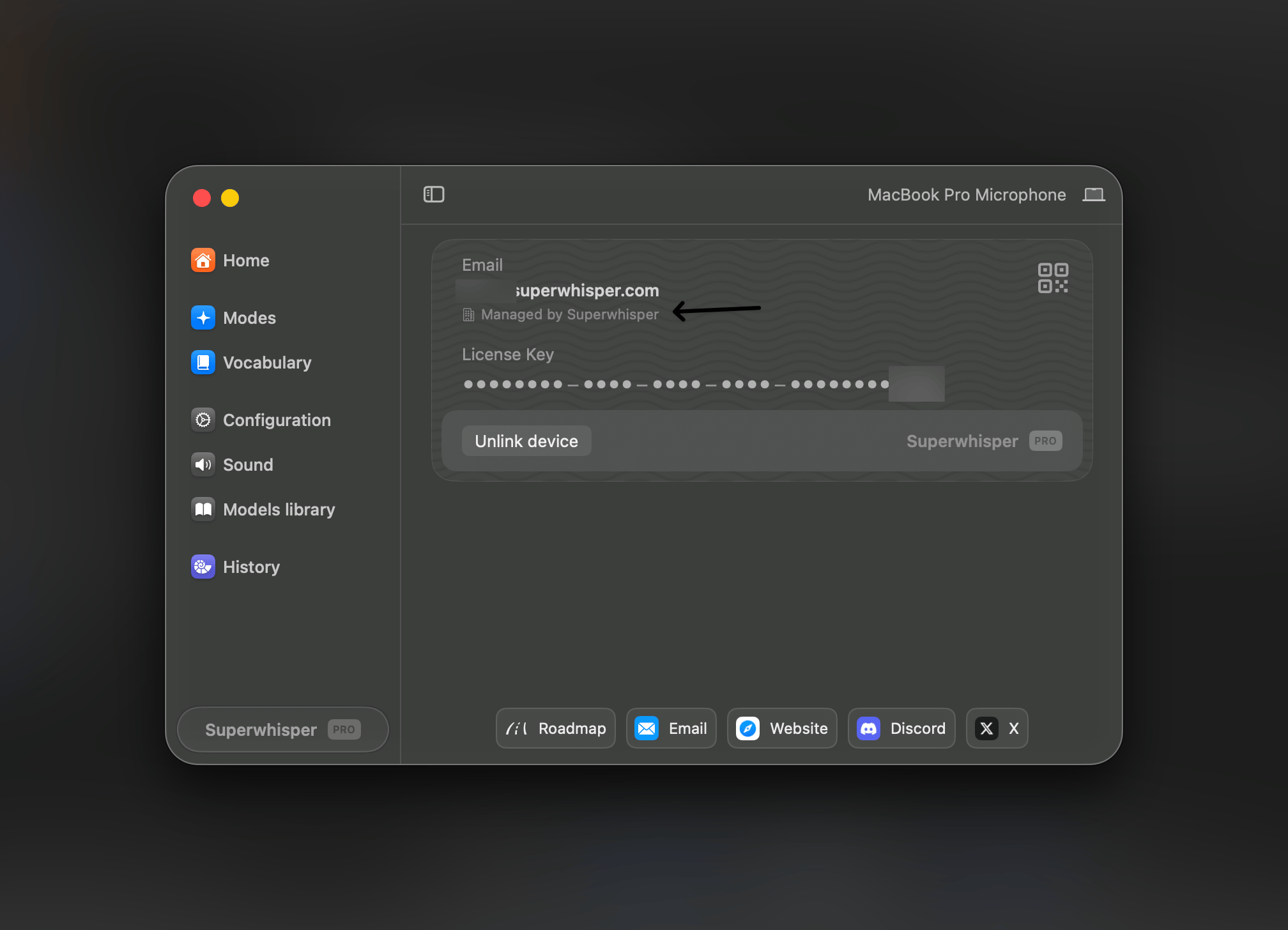 Members don't need to copy or paste a license key. Activation is fully tied to their sign-in.
### Configuration Updates
Every time a member starts the Superwhisper app, it pulls the latest [configuration](/enterprise/configuration) for your organization. Changes you make in the dashboard apply to members on their next app launch, no member action required.
This keeps:
* Settings consistent across the whole team
* Org-wide policies (model access, retention, recording controls) up to date
* Authentication requirements aligned with the latest auth method
## Operating Recommendations
* **Set up [billing](/enterprise/billing) before inviting anyone.** Invites can't provision licenses without billing in place
* **Keep Admin/Owner roles tight.** Audit who holds them every quarter and downgrade anyone who no longer needs the access
* **Run [SCIM](/enterprise/scim) end-to-end** so departures from your identity provider deprovision Superwhisper automatically. Manual cleanup is where seat leakage lives
* **Invite IT/Security to set up SAML** instead of sharing dashboard credentials. Use the magic-link invitation flow
## Related
* [Billing & Subscription Management](/enterprise/billing), seat-based billing details that pair with member changes
* [SAML SSO](/enterprise/saml-sso) and [SCIM](/enterprise/scim), automate authentication and provisioning
* [MDM & Silent Deployment](/enterprise/mdm-deployment), zero-touch app rollout for new members
## Support
Questions about member management? Email [enterprise@superwhisper.com](mailto:enterprise@superwhisper.com), request a shared Slack channel, or schedule a call.
Members don't need to copy or paste a license key. Activation is fully tied to their sign-in.
### Configuration Updates
Every time a member starts the Superwhisper app, it pulls the latest [configuration](/enterprise/configuration) for your organization. Changes you make in the dashboard apply to members on their next app launch, no member action required.
This keeps:
* Settings consistent across the whole team
* Org-wide policies (model access, retention, recording controls) up to date
* Authentication requirements aligned with the latest auth method
## Operating Recommendations
* **Set up [billing](/enterprise/billing) before inviting anyone.** Invites can't provision licenses without billing in place
* **Keep Admin/Owner roles tight.** Audit who holds them every quarter and downgrade anyone who no longer needs the access
* **Run [SCIM](/enterprise/scim) end-to-end** so departures from your identity provider deprovision Superwhisper automatically. Manual cleanup is where seat leakage lives
* **Invite IT/Security to set up SAML** instead of sharing dashboard credentials. Use the magic-link invitation flow
## Related
* [Billing & Subscription Management](/enterprise/billing), seat-based billing details that pair with member changes
* [SAML SSO](/enterprise/saml-sso) and [SCIM](/enterprise/scim), automate authentication and provisioning
* [MDM & Silent Deployment](/enterprise/mdm-deployment), zero-touch app rollout for new members
## Support
Questions about member management? Email [enterprise@superwhisper.com](mailto:enterprise@superwhisper.com), request a shared Slack channel, or schedule a call.