> ## Documentation Index
> Fetch the complete documentation index at: https://superwhisper-docs-cloud-model-rate-limits.mintlify.site/llms.txt
> Use this file to discover all available pages before exploring further.
# Performance Tips
> Learn how to optimize Superwhisper's performance and responsiveness on your system.
## Overview
**By default, Superwhisper delivers fast performance.** However, if you're experiencing slowness or want to improve the app's responsiveness, the tips below point out the areas that tend to have the biggest impact on how fast the app runs. Several factors can affect Superwhisper's performance:
Your computer's processing power, RAM, and available memory directly impact performance, especially when using local models.
Cloud-based processing depends on your internet speed and stability for optimal performance.
Different AI models will vary in performance based on your specific use case.
Voice transcription and AI processing are separate operations with different performance implications.
***
## Local vs Cloud Models
The choice between local and cloud models can significantly affects performance:
### Local Models
Local models run offline, directly on your computer, which means that your system specifications directly influence processing speed.
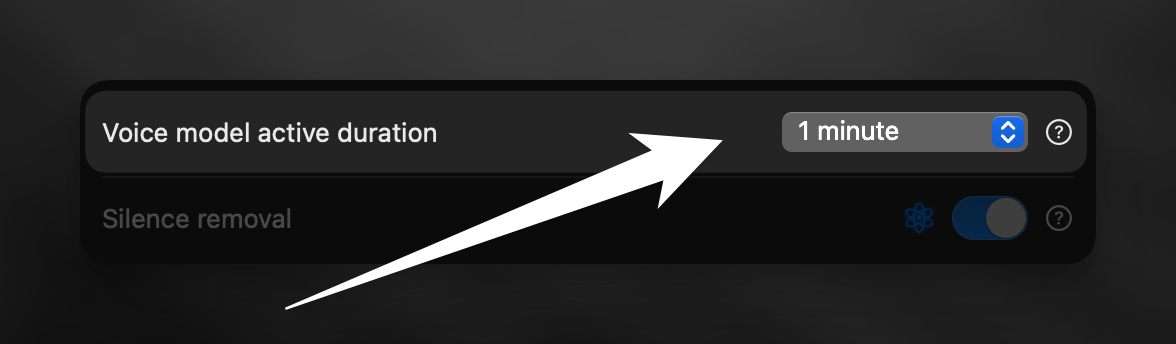 In Superwhisper's Advanced Settings, you can adjust how long voice models remain loaded:
* Settings range from 10 seconds to 1 hour
* Shorter durations free up system resources but require reloading for new dictations
* Longer durations keep models ready but consume more system resources
For optimal local model performance:
* Ensure adequate RAM
* More powerful CPUs will process dictations faster
* If your Mac struggles with local models because of its specifications, consider closing resource-intensive applications when using Superwhisper
### Cloud Models
Cloud models process your dictations on remote servers:
Superwhisper uses different models for voice transcription and AI processing. Some are better for certain tasks or types of content.
Depending on your system specs, cloud models generally offer faster processing than local options, but require a stable internet connection.
***
## Optimizing Processing Speed
Transcription and AI processing are separate operations:
* Using voice mode only (without AI processing) provides the fastest results
* Consider this option when you don't need special formatting
Match the model to your specific needs:
* Short dictations: Ultra Cloud model
* Local and fast: Parakeet model (English only)
* Offline reliability & privacy: Local models
* Longer dictations: Any model
Use the History menu to identify performance bottlenecks:
* Check processing time for voice transcription
* Check processing time for AI processing
* Identify which part of the process is causing delays and switch model if necessary
***
## Related Documentation
Learn how to set your preferred AI models in Superwhisper
Discover how to use the History panel for troubleshooting
Explore all available configuration options
Learn how to effectively report problems to the Superwhisper team
In Superwhisper's Advanced Settings, you can adjust how long voice models remain loaded:
* Settings range from 10 seconds to 1 hour
* Shorter durations free up system resources but require reloading for new dictations
* Longer durations keep models ready but consume more system resources
For optimal local model performance:
* Ensure adequate RAM
* More powerful CPUs will process dictations faster
* If your Mac struggles with local models because of its specifications, consider closing resource-intensive applications when using Superwhisper
### Cloud Models
Cloud models process your dictations on remote servers:
Superwhisper uses different models for voice transcription and AI processing. Some are better for certain tasks or types of content.
Depending on your system specs, cloud models generally offer faster processing than local options, but require a stable internet connection.
***
## Optimizing Processing Speed
Transcription and AI processing are separate operations:
* Using voice mode only (without AI processing) provides the fastest results
* Consider this option when you don't need special formatting
Match the model to your specific needs:
* Short dictations: Ultra Cloud model
* Local and fast: Parakeet model (English only)
* Offline reliability & privacy: Local models
* Longer dictations: Any model
Use the History menu to identify performance bottlenecks:
* Check processing time for voice transcription
* Check processing time for AI processing
* Identify which part of the process is causing delays and switch model if necessary
***
## Related Documentation
Learn how to set your preferred AI models in Superwhisper
Discover how to use the History panel for troubleshooting
Explore all available configuration options
Learn how to effectively report problems to the Superwhisper team