> ## Documentation Index
> Fetch the complete documentation index at: https://superwhisper-docs-cloud-model-rate-limits.mintlify.site/llms.txt
> Use this file to discover all available pages before exploring further.
# Language Detection
> Learn how to fix issues with Superwhisper automatically translating non-English dictation to English when using the Automatic language setting.
## Overview
Superwhisper processes your dictation in two distinct stages:
1. **Voice-to-Text Transcription**: Converting your spoken words into written text
2. **AI Text Processing**: Applying formatting and handling specific requests based on the selected mode
When using the "Automatic" language setting, you may experience your non-English dictation being incorrectly transcribed as English text. This mostly happens at the transcription stage, before any AI processing occurs.
You can verify this by checking [the History tab](../get-started/interface-history), which shows the raw transcription before processing.
***
## Why This Happens
The transcription AI models use a prompt to guide their behavior. This prompt:
* Improves word recognition accuracy
* Enhances punctuation
* Can unintentionally affect language detection
With the "Automatic" setting, Superwhisper cannot predict which languages you'll use, making it challenging to provide appropriate language guidance to the transcription model.
***
## Solution: The Vocabulary Hint
You can significantly improve automatic language detection by adding a simple phrase to your Vocabulary list:
Navigate to the Vocabulary tab in SuperWhisper settings.
Add the phrase "and it can also include words in \[LANGUAGE]" written in your target language. For example, if you speak Spanish, add: "y también puede incluir palabras en español".
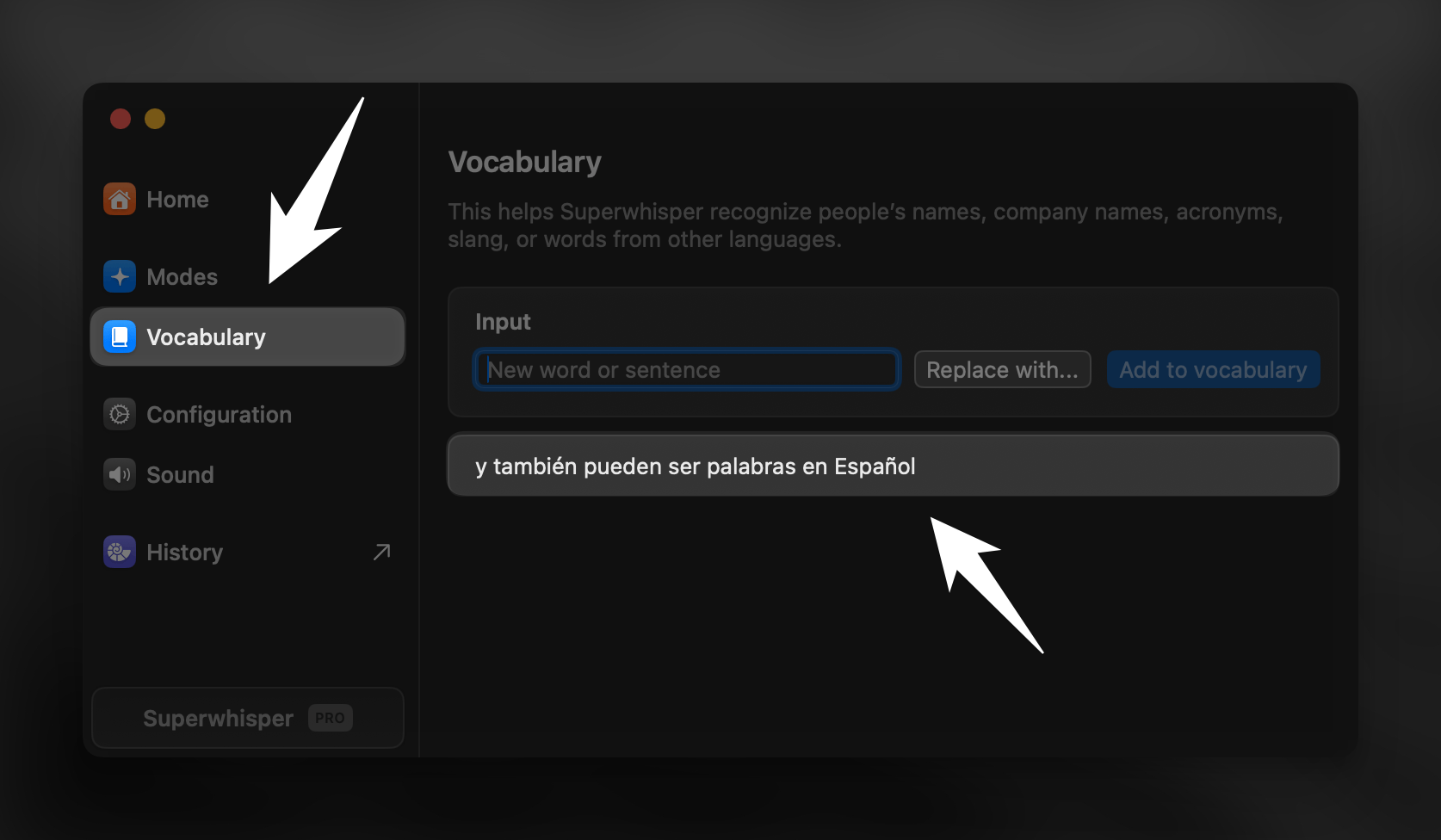 For best results, add a few more individual words to your vocabulary and keep the list short for optimal performance.
***
## Model Compatibility
**The vocabulary hint works effectively with all voice models except Nova or Parakeet.** Nova and Parakeet models don't support multiple languages within the same dictation session. You can still add the vocabulary phrase without negative effects, but you won't get the multi-language benefits.
With models that support the vocabulary hint, you'll get much better language recognition. You can also switch between multiple languages in a single session without having to adjust any settings.
***
## Alternative Approach
If the vocabulary hack doesn't fully address your needs:
1. **Create Language-Specific Modes**: Set up different modes for each language you use regularly
2. **Custom Mode Prompts**: For custom modes, add instructions to preserve the input language
***
## Related Documentation
Learn how to use the Vocabulary feature to guide and enhance your transcription accuracy.
Discover how to use Nova models to transcribe audio with automatic speaker identification.
For best results, add a few more individual words to your vocabulary and keep the list short for optimal performance.
***
## Model Compatibility
**The vocabulary hint works effectively with all voice models except Nova or Parakeet.** Nova and Parakeet models don't support multiple languages within the same dictation session. You can still add the vocabulary phrase without negative effects, but you won't get the multi-language benefits.
With models that support the vocabulary hint, you'll get much better language recognition. You can also switch between multiple languages in a single session without having to adjust any settings.
***
## Alternative Approach
If the vocabulary hack doesn't fully address your needs:
1. **Create Language-Specific Modes**: Set up different modes for each language you use regularly
2. **Custom Mode Prompts**: For custom modes, add instructions to preserve the input language
***
## Related Documentation
Learn how to use the Vocabulary feature to guide and enhance your transcription accuracy.
Discover how to use Nova models to transcribe audio with automatic speaker identification.